Magnet Transfer
Magnet transfer downloads files from a magnet link and uploads them automatically to the cloud storage channel you choose.
It is useful for transferring anime episodes, videos, archives, and similar files. Paste a magnet link, and ImgBed creates a background download task. After the download finishes, the file is uploaded to ImgBed and the final link appears in the upload list.
Where To Use It
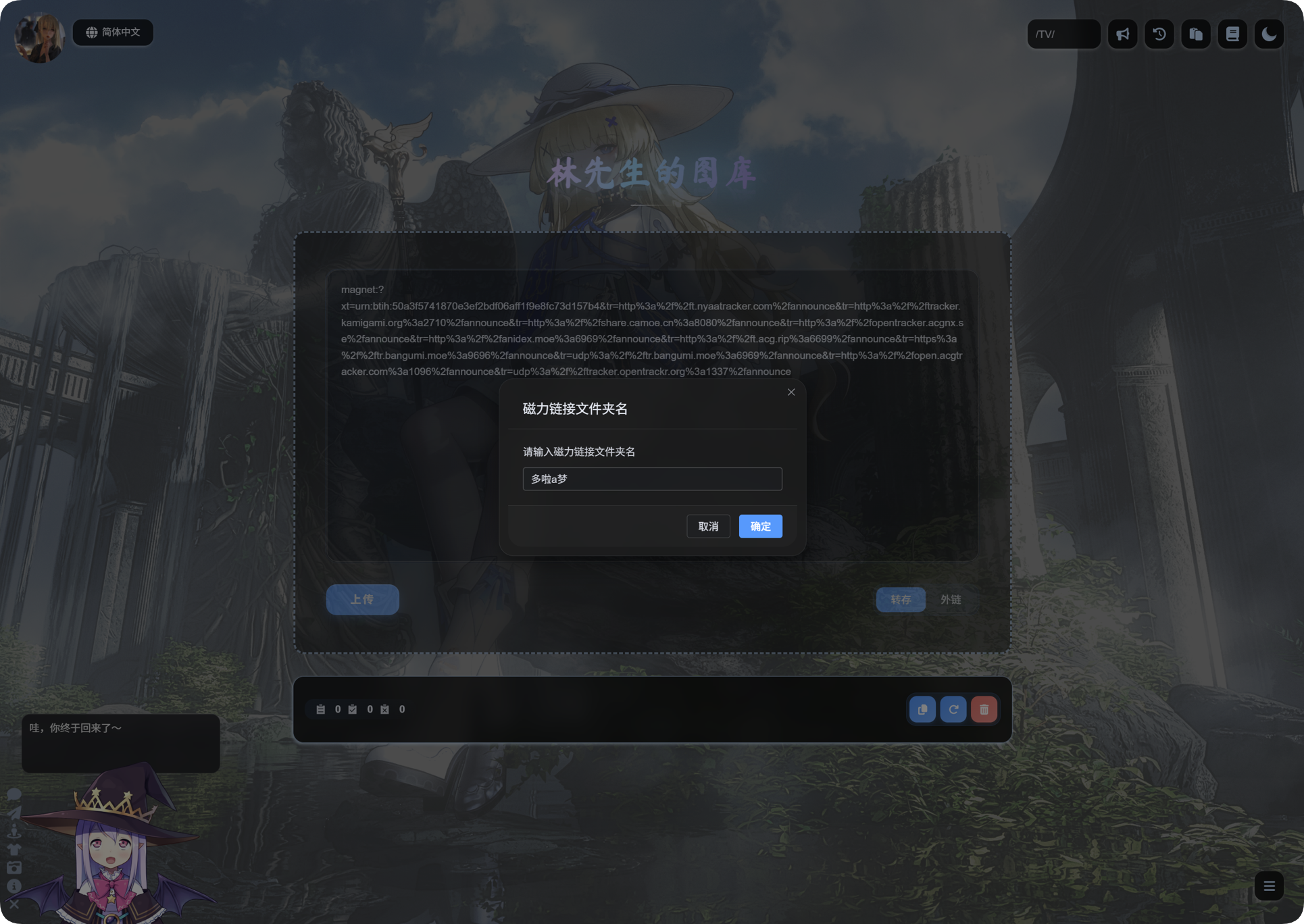
The magnet transfer entry is in the homepage upload area.
Paste the magnet link into the input box, choose Transfer, then upload.
Before First Use
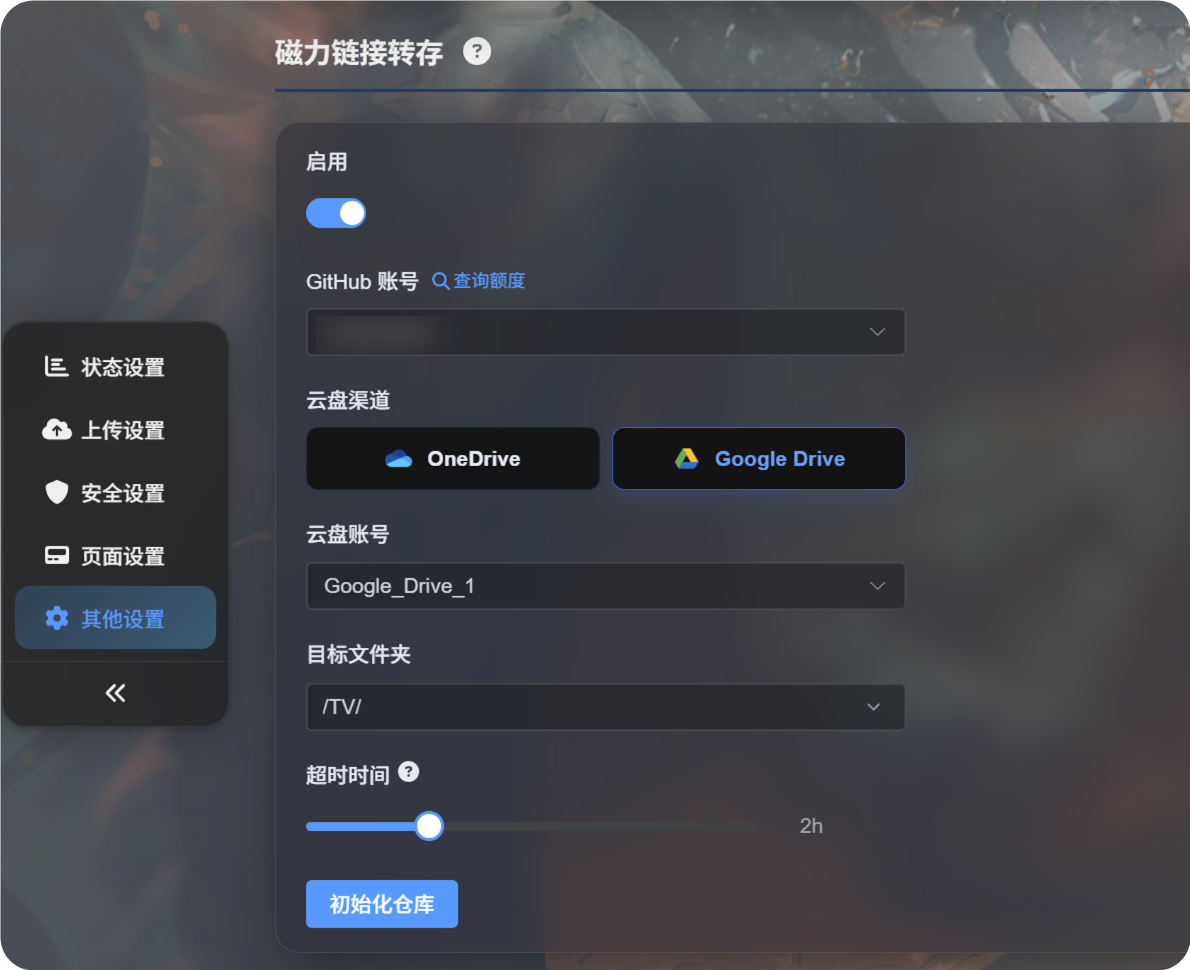
Configure magnet transfer in the admin panel first.
You usually need:
- A GitHub account for running the download task.
- A cloud upload channel, such as Google Drive or OneDrive.
- The target upload directory.
- A task timeout.
After the settings are ready, return to the homepage and paste a magnet link to start transfer.
Uploading a Magnet Link
- Paste the magnet link into the homepage upload box.
- Make sure the mode is set to
Transfer. - Click upload.
- Wait for ImgBed to create the magnet task.
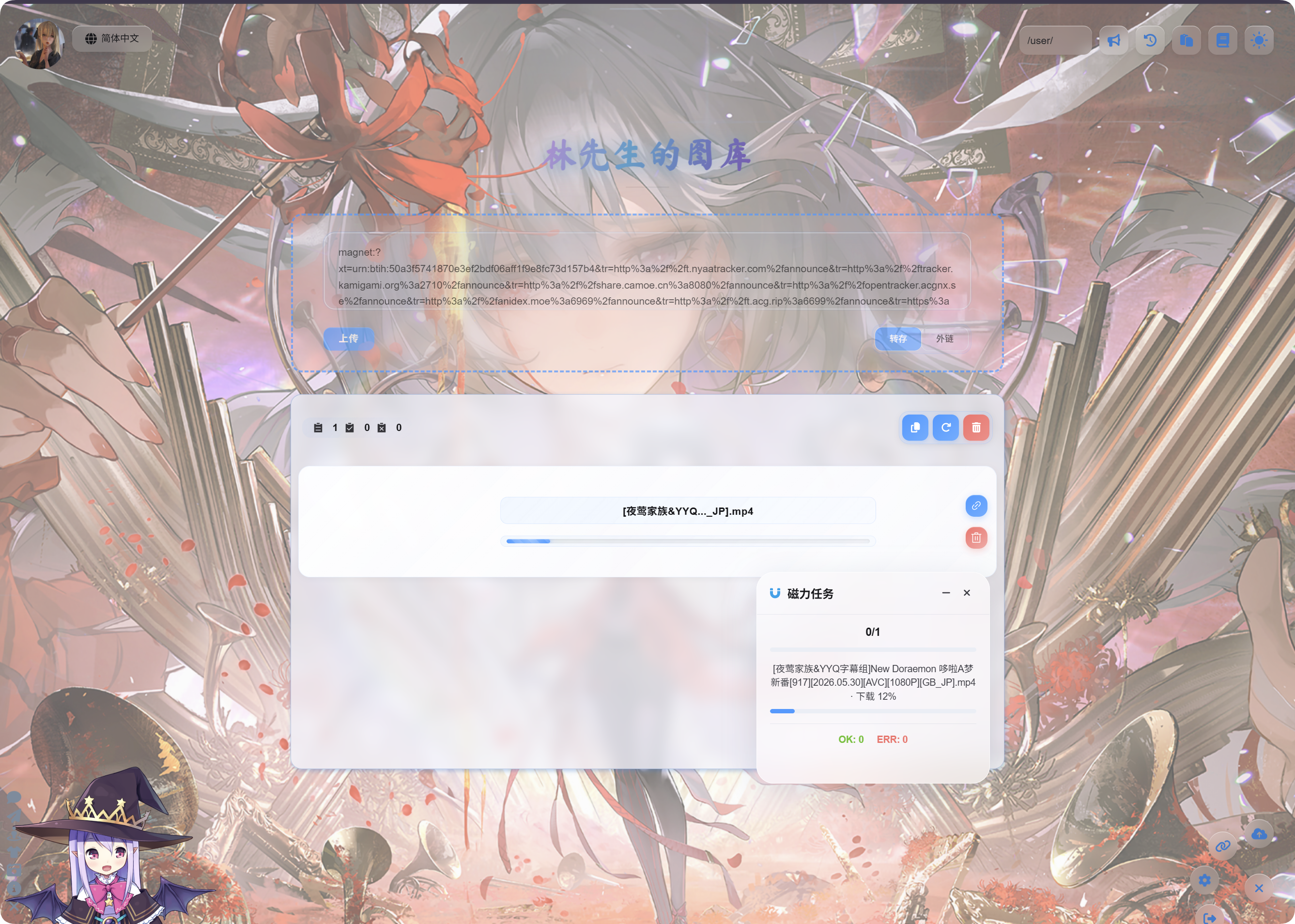
- After the task starts, use the
Magnet Tasksfloating panel in the bottom-right corner to check progress.
Download and upload can take time. Speed depends on the magnet resource, the GitHub runtime environment, and the selected cloud storage channel.
After Completion
After the task completes, the upload list shows the file name and link.
Videos show video preview, images show image preview, and other files show a regular file icon.
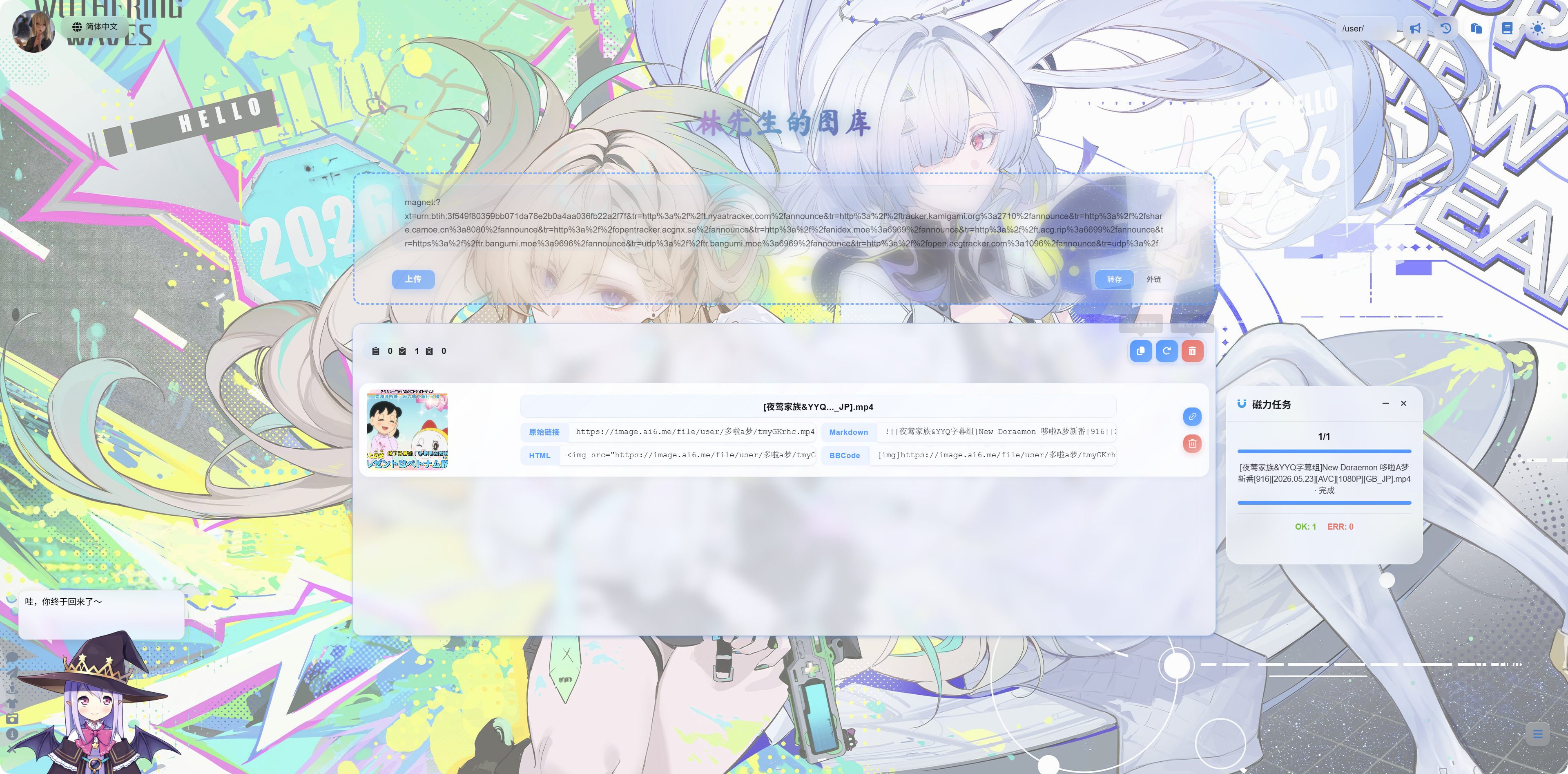
You can copy:
| Link Type | Use Case |
|---|---|
| Original link | Direct file access |
| Markdown | Markdown posts or notes |
| HTML | Web page code |
| BBCode | Forums that support BBCode |
Magnet Task Panel
The bottom-right magnet task panel shows task count, task name, progress, and final status.
Common states:
| Status | Meaning |
|---|---|
| Waiting | The task is created and waiting to run. |
| Downloading | The magnet resource is being downloaded. |
| Uploading | The file has downloaded and is being uploaded to cloud storage. |
| Completed | Upload succeeded and the link can be copied. |
| Failed | The task did not finish successfully. Check the message and try again. |
Tips
- If a magnet link contains multiple files, ImgBed prioritizes the main completed file for display.
- Large files take longer. Wait for the task to finish before refreshing the page.
- If the magnet resource has no available peers, it may be very slow or fail.
- If the cloud account is out of quota, authorization has expired, or the upload directory is wrong, the task may fail.
- Video preview may take a few seconds after upload completes.
FAQ
Nothing Starts After I Paste a Magnet Link
Confirm magnet transfer is enabled in the admin panel and that a usable GitHub account and cloud channel have been selected.
Download Is Always Slow
Magnet speed depends on the resource itself. If there are no available peers, the download may be very slow or impossible.
No Preview Appears After Upload
First confirm the file link opens. Video files may need a short time to load in the browser, or you can open the link directly.
What Should I Check If a Task Fails?
Check whether the magnet link is valid, whether the cloud channel works, and whether the upload directory is correct. Then submit the task again.