Adding a OneDrive Channel
What You Need First
| Requirement | Why You Need It |
|---|---|
| A Microsoft account | Used to access Microsoft admin pages and authorize OneDrive |
| Your ImgBed domain | Used for the OAuth callback URL |
| An app registration | Used to generate the Client ID and Client Secret |
| A OneDrive account | Used as the actual file storage location |
Setup Steps
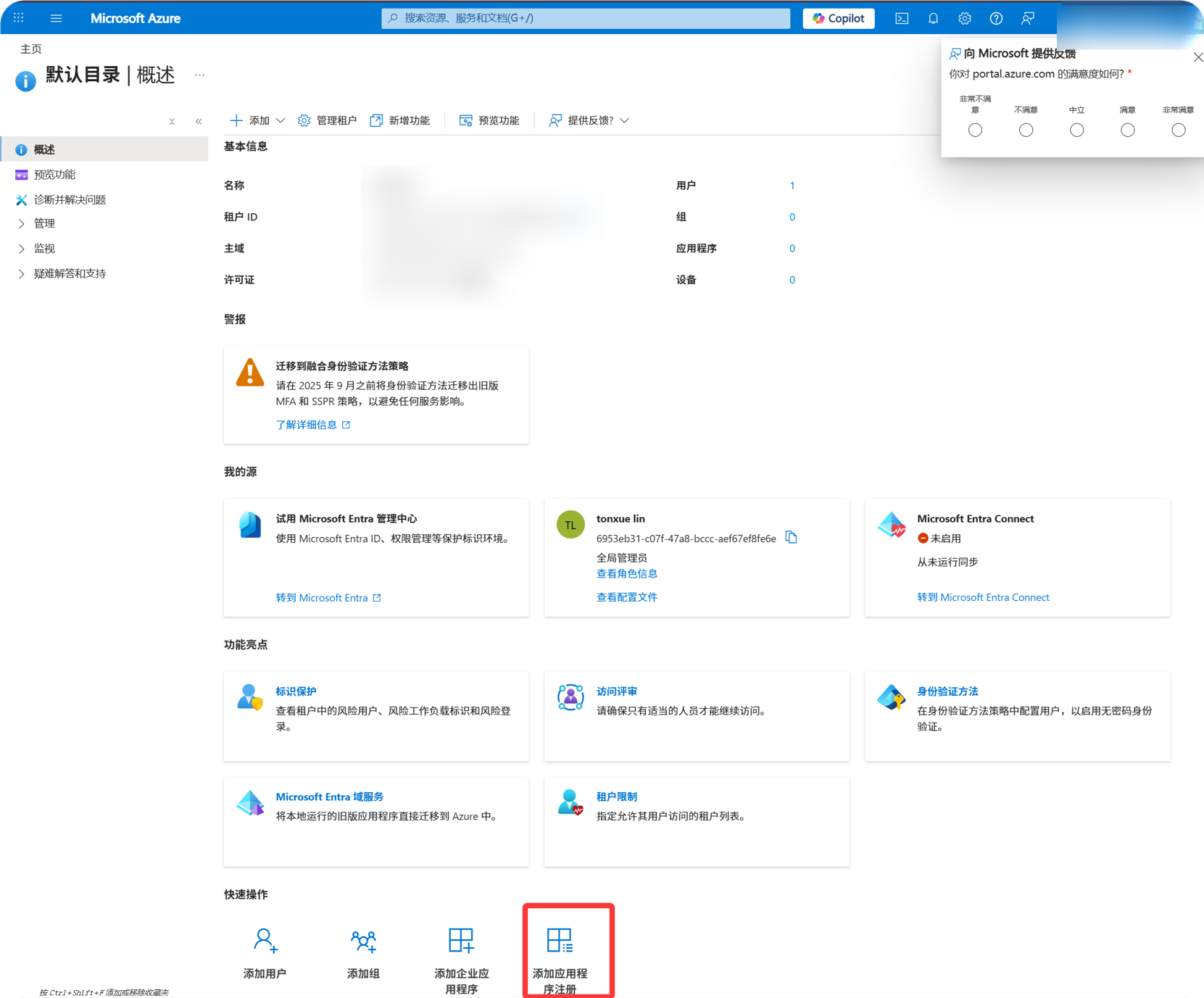
Step 1: Open Microsoft Entra ID
- Open
portal.azure.com. - Search for
Microsoft Entra IDat the top. - If the target page is not shown in the dropdown, choose:
text
Continue searching in Microsoft Entra ID- Open
Microsoft Entra ID. - Open
App registrations. - Click
New registration.
Step 2: Register an App
On the New registration page, fill in:
| Field | What To Enter |
|---|---|
| Name | A recognizable name, such as imgbed-onedrive |
| Supported account types | Choose based on the table below |
| Redirect URI type | Web |
| Redirect URI | https://your-domain.com/api/oauth/onedrive/callback |
Account type guidance:
| Your Scenario | Supported Account Types |
|---|---|
| Personal OneDrive only | Choose the personal Microsoft account option. |
| Both personal and work/school accounts | Choose the option that supports both personal and organizational accounts. |
| Company or school OneDrive only | Choose the organizational account option. |
Click register after filling in the form.
Step 3: Copy App Information
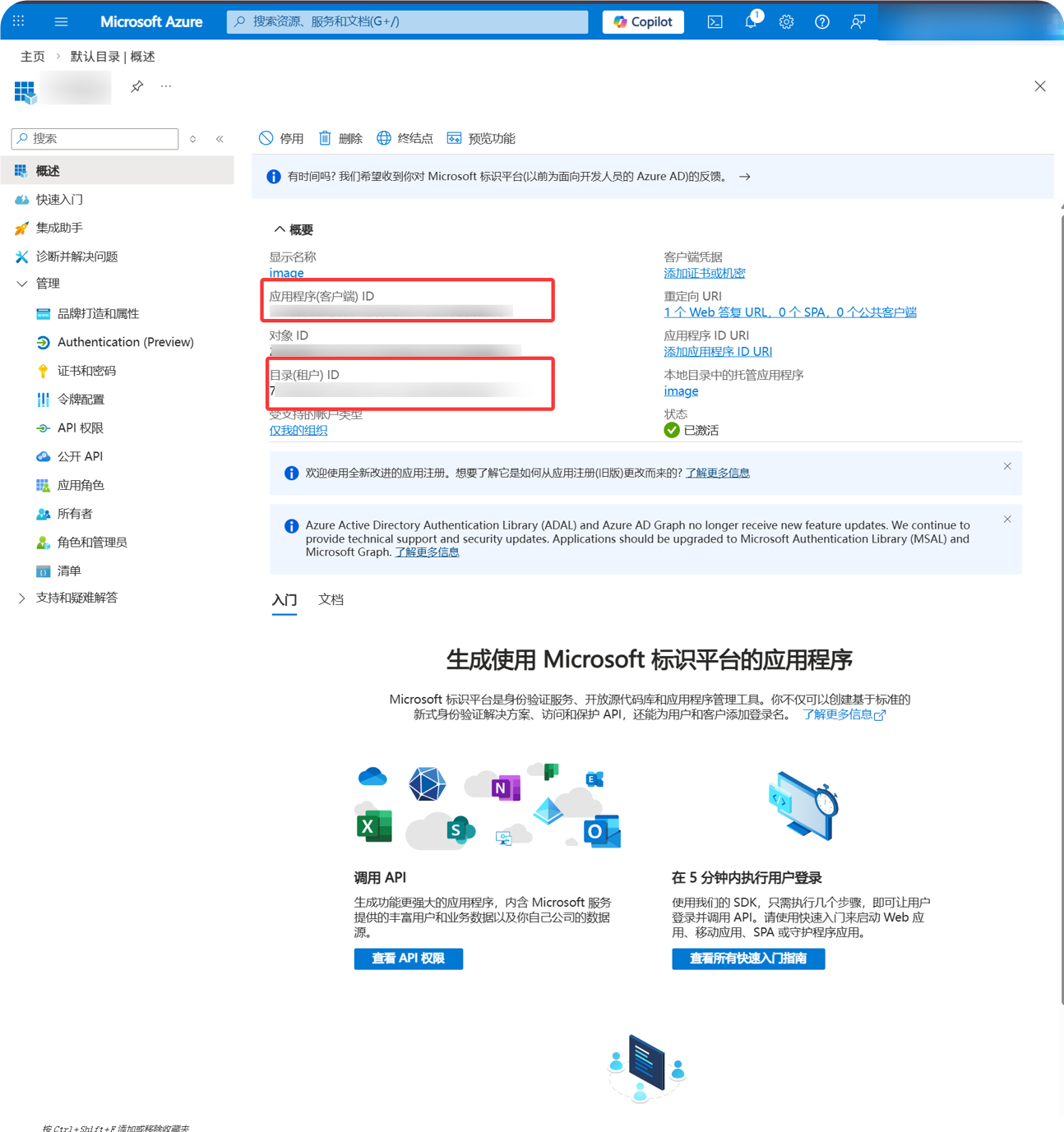
After the app is created, copy these values from the overview page:
| Microsoft Field | ImgBed Field |
|---|---|
Application (client) ID | Client ID |
Directory (tenant) ID | Tenant ID for organizational accounts |
Step 4: Create a Client Secret
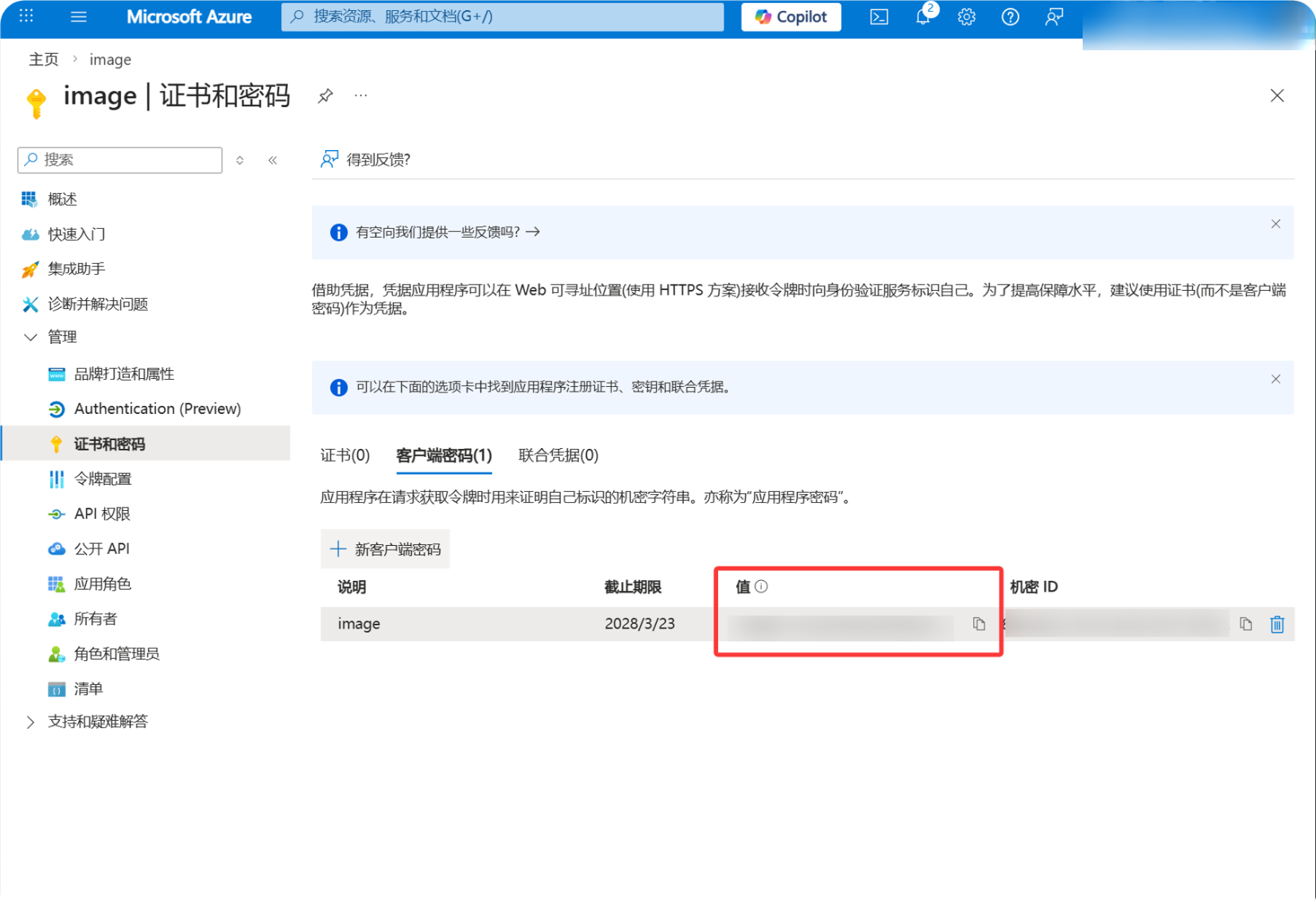
- Open
Certificates & secrets. - Click
New client secret. - Enter any description you prefer.
- Choose an expiration period.
- Copy the
Valueimmediately after it is created.
Step 5: Add API Permissions
- Open
API permissions. - Click
Add a permission. - Choose
Microsoft Graph. - Choose
Delegated permissions. - Add these permissions:
| Permission | Purpose |
|---|---|
Files.ReadWrite.All | Uploads files, creates folders, and deletes files |
offline_access | Allows ImgBed to obtain a Refresh Token |
User.Read | Reads account and quota information |
Step 6: Fill in the OneDrive Channel
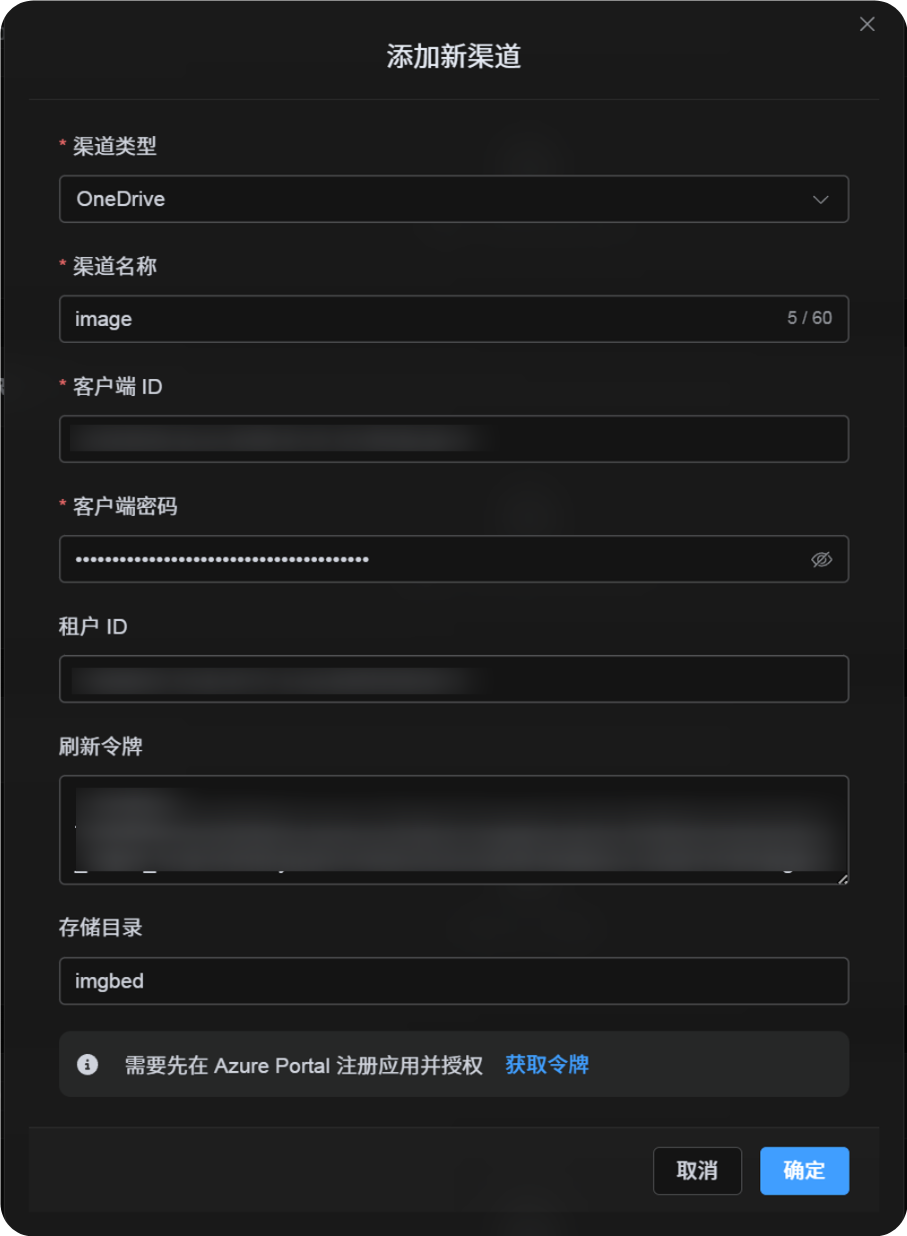
In Upload Settings, choose OneDrive and fill in:
| ImgBed Field | What To Enter |
|---|---|
| Channel name | A recognizable name, such as Main OneDrive |
| Client ID | The Microsoft Application (client) ID |
| Client Secret | The Client Secret Value you copied |
| Tenant ID | Use the table below |
| Refresh Token | Leave it empty for now |
| Root directory | Optional. Defaults to imgbed. |
| Note | Optional |
How to fill Tenant ID:
| Account Type You Chose | ImgBed Tenant ID |
|---|---|
| Personal accounts | consumers |
| Personal + organizational accounts | common |
| Current organization only | The Directory (tenant) ID |
Step 7: Get the Refresh Token
- In ImgBed, click
Get Token. - Sign in to the Microsoft account you want to connect.
- Approve the authorization prompt.
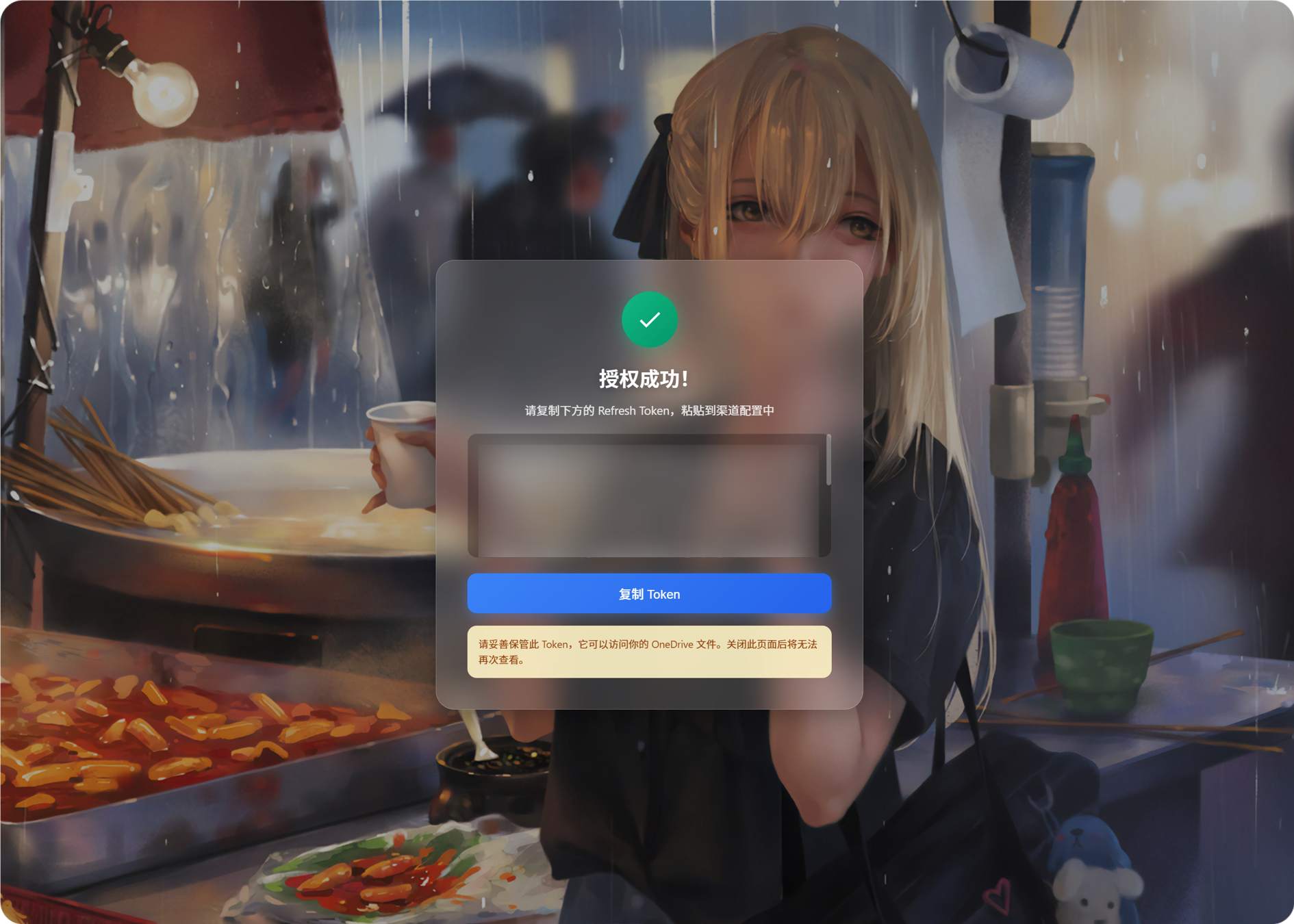
- The callback page will show a
Refresh Token. - Copy it.
- Return to ImgBed and paste it into the
Refresh Tokenfield.
Step 8: Save the Channel
After all fields are filled in, save the channel.
Quick Flow
text
Open portal.azure.com
-> Search for Microsoft Entra ID
-> Open App registrations
-> Register a new app
-> Fill Name / Supported account types / Web redirect URI
-> Register
-> Copy Application (client) ID
-> Check the callback URL in Authentication
-> Create a Client Secret in Certificates & secrets
-> Add permissions in API permissions
-> Fill Client ID / Client Secret / Tenant ID into ImgBed
-> Click Get Token
-> Copy the Refresh Token from the callback page
-> Paste it back into ImgBed and save
References
- Microsoft Entra app registration: https://learn.microsoft.com/en-us/entra/identity-platform/quickstart-register-app
- Microsoft identity platform authorization code flow: https://learn.microsoft.com/en-us/entra/identity-platform/v2-oauth2-auth-code-flow
- Microsoft Graph user authentication: https://learn.microsoft.com/en-us/graph/auth-v2-user