Add an S3 Channel
Best Fit
Use the S3 channel when:
- You want to connect any S3-compatible object storage service, such as Cloudflare R2, Backblaze B2, MinIO, AWS S3, or another compatible provider.
- You prefer the standard S3 configuration model:
Endpoint, Access Key, and Secret Key. - You do not want to use the native Cloudflare R2 binding channel, or your storage provider is not Cloudflare R2.
What You Need Before You Start
| Requirement | Purpose |
|---|---|
| S3 Endpoint | The S3 API endpoint of the object storage service. |
| Bucket name | The bucket where files will be stored. |
| Region | Storage region. For Cloudflare R2, this is usually auto. |
| Access Key ID | S3 access key ID. |
| Secret Access Key | S3 secret access key. |
| CDN domain | Optional custom domain for file access. |
Example for Cloudflare R2 through the S3 API:
text
Endpoint: https://your-account-id.r2.cloudflarestorage.com
Bucket: your-r2-bucket-name
Region: auto
Access Key ID: copied from the Cloudflare R2 API token
Secret Access Key: copied from the Cloudflare R2 API token
Where to Add It
- Open System Settings.
- Go to Upload Settings.
- Click Add Channel in the upper-right corner.
- Select
S3.
Field Reference
| Field | What It Does | Required |
|---|---|---|
| Channel name | A friendly name for this S3 channel, such as s3test or R2-S3. | Yes |
| Enable channel | Controls whether this channel participates in upload selection. | Recommended |
| Endpoint | Full S3 service endpoint, including https://. | Yes |
| Custom CDN domain | Optional. When set, generated file links prefer this domain. | No |
| Bucket name | Bucket name, such as s3test or img-r2. | Yes |
| Bucket region | Region. For Cloudflare R2, this is usually auto. | Yes |
| Access Key ID | S3 access key ID. | Yes |
| Secret Access Key | S3 secret access key. | Yes |
| Path-style access | Compatibility switch. Off by default. Some MinIO, OpenList, or self-hosted S3 services may require it. | No |
| Quota limit | Controls whether this S3 channel participates in upload selection based on capacity. | No |
| Capacity limit | Required after quota limit is enabled, for example 10 GB. | Required when quota limit is enabled |
| Threshold | Stops writing after usage reaches this percentage, for example 90%. | Required when quota limit is enabled |
| Remark | Notes for your own maintenance. | No |
Create Cloudflare R2 S3 API Keys
- Open the Cloudflare Dashboard.
- Go to
R2 Object Storage. - Find
Manage R2 API Tokensor the API token management entry.

- Create an R2 API token that can access the target bucket.
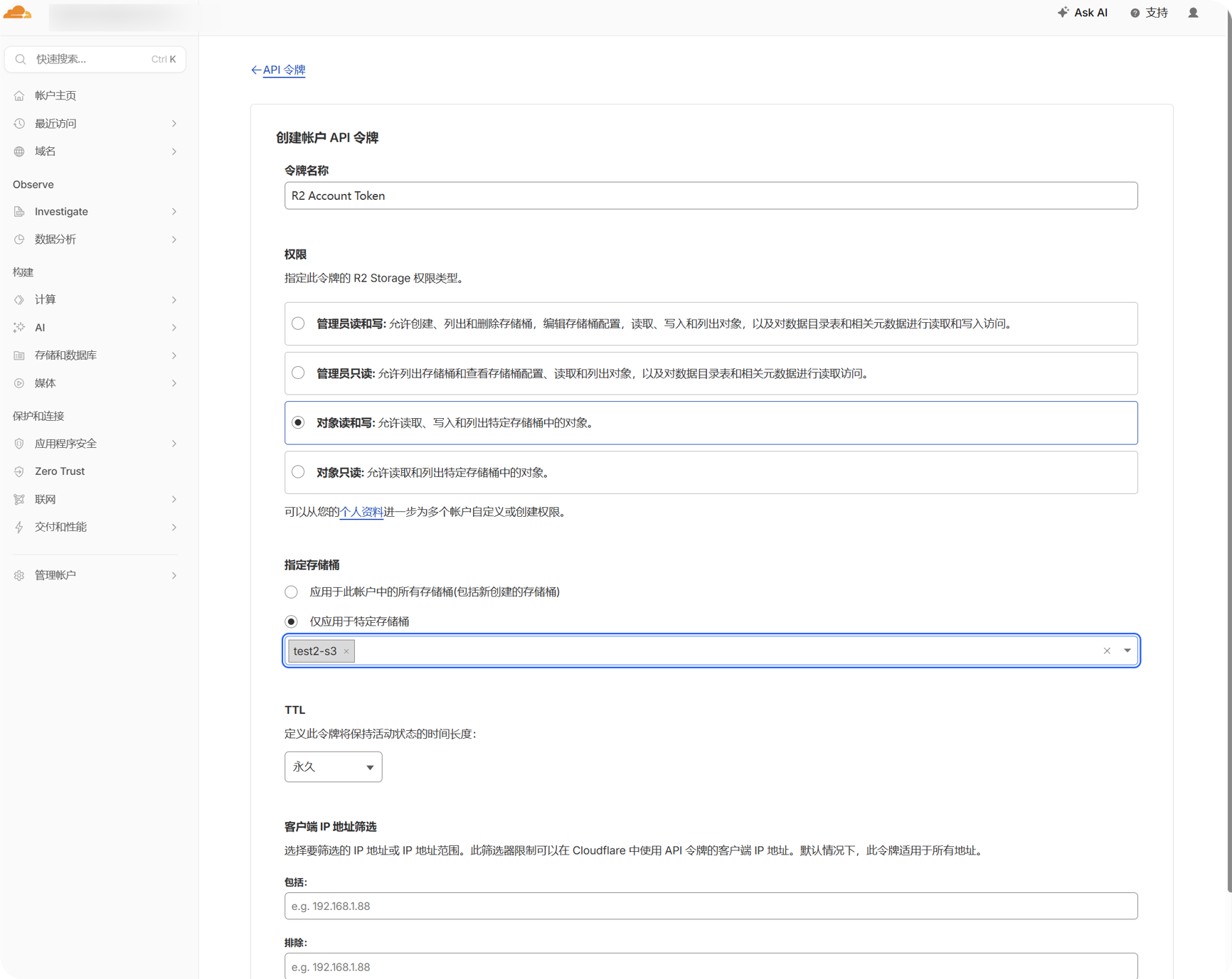
- Copy the generated
Access Key IDandSecret Access Key.
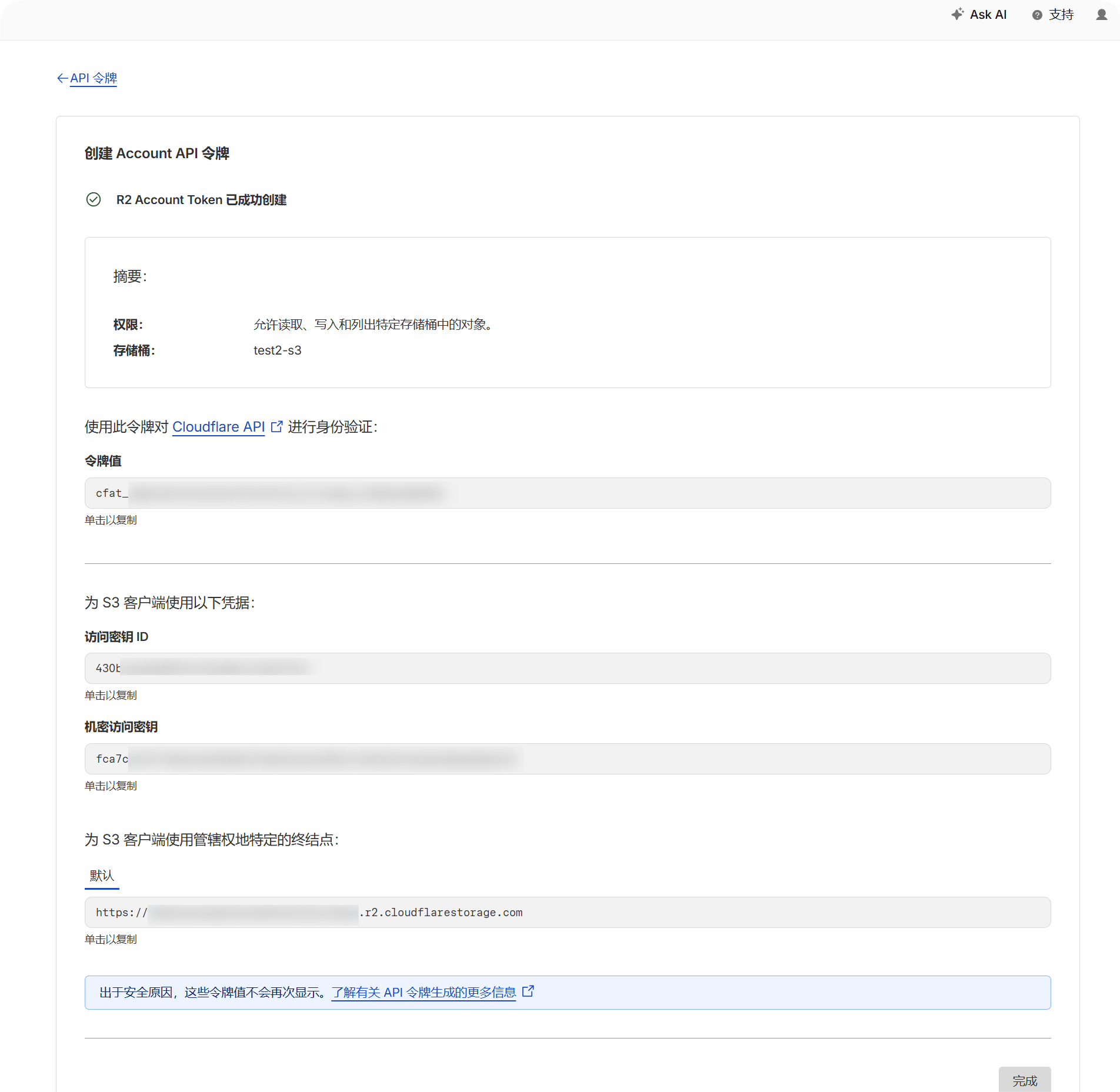
- Return to the R2 bucket page and confirm the bucket name.
- Record the S3 API endpoint for the account. It usually looks like:
text
https://your-account-id.r2.cloudflarestorage.comSetup Steps
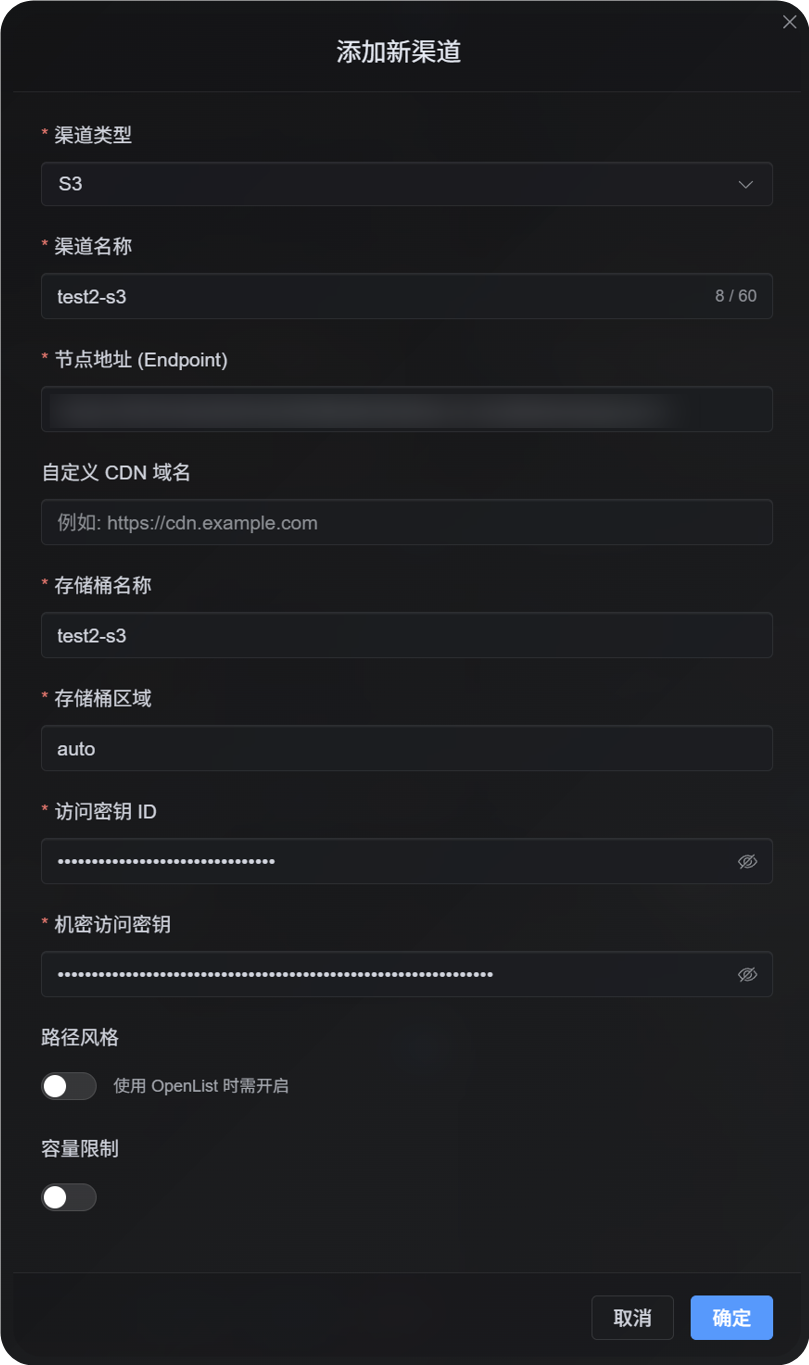
- Open Upload Settings.
- Click Add Channel.
- Select
S3. - Enter a channel name you can recognize, for example
s3test. - Enter the S3 API endpoint in
Endpoint. - If you use a custom CDN, enter it in
Custom CDN domain; otherwise leave it empty. - Enter the bucket name.
- Enter the region. For the Cloudflare R2 example, use
auto. - Enter the Access Key ID and Secret Access Key.
- Leave path-style access off unless your provider explicitly requires it.
- If you want capacity control, enable quota limit and enter the capacity limit and threshold.
- Click Save.
How to Verify It
| Check | How to Verify |
|---|---|
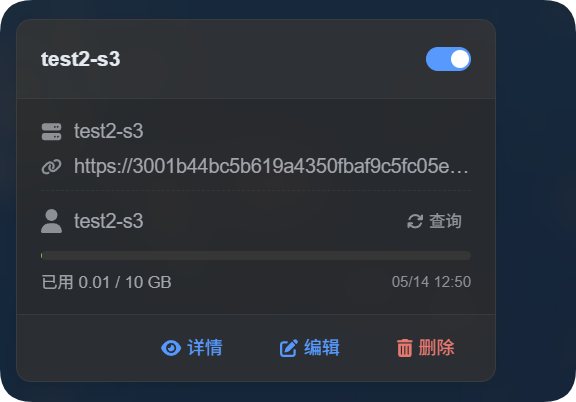
| Channel card appears | After saving, the Upload Settings page should show an S3 channel card. |
| Channel is enabled | The switch in the upper-right corner of the card should stay on. |
| Key fields are saved | The detail view should show Endpoint, Bucket, Region, path-style access, and related fields. |
| Upload works | Upload a test image and confirm that the object appears in the target bucket. |
| Link opens | The image link returned after upload should open normally. |
| Capacity display works | If quota limit is enabled, the card should show used capacity and the configured limit. |
S3 capacity statistics are calculated from ImgBed's local file records, not by querying the provider bucket in real time. After saving an S3 configuration, the system recalculates the quota ledger from the current D1 records.
FAQ
Should I enable path-style access?
Usually, no.
Enable it only when your S3-compatible provider does not support virtual-hosted-style URLs, or when the provider documentation explicitly requires path-style access. Some MinIO, self-hosted S3, and OpenList-compatible endpoints may need it.
What is the CDN domain for?
If you put a CDN or custom access domain in front of the bucket, enter it here.
After it is configured, generated file links will prefer this domain. If you do not use a CDN, leave it empty.
Why does upload fail?
Check these items first:
- The Endpoint includes the full
https://URL. - The bucket name is correct.
- The Region matches the provider requirement.
- The Access Key ID and Secret Access Key were copied completely.
- The key has write permission for the target bucket.
- The provider does not require path-style access, or path-style access has been enabled if required.
Quick Checklist
text
Prepare S3 Endpoint, Bucket, Region, Access Key, and Secret Key
-> Open Upload Settings
-> Add Channel
-> Select S3
-> Enter Endpoint / Bucket / Region / Access Key / Secret Key
-> Enter a CDN domain if needed
-> Leave path-style access off by default
-> Enable quota limit if needed
-> Save
-> Upload a test image and check the result