Federated Distributed Index
The federated distributed index lets multiple ImgBed sites share file lists with each other.
In simple terms:
- You can share selected folders from your site with others.
- You can join another node and sync that node's shared file list into your admin panel.
- Federated files are mainly for browsing, searching, and opening links. They are not re-uploaded to your own storage.
Where To Configure It
Open:
text
System Settings -> Other Settings -> Federated Distributed Index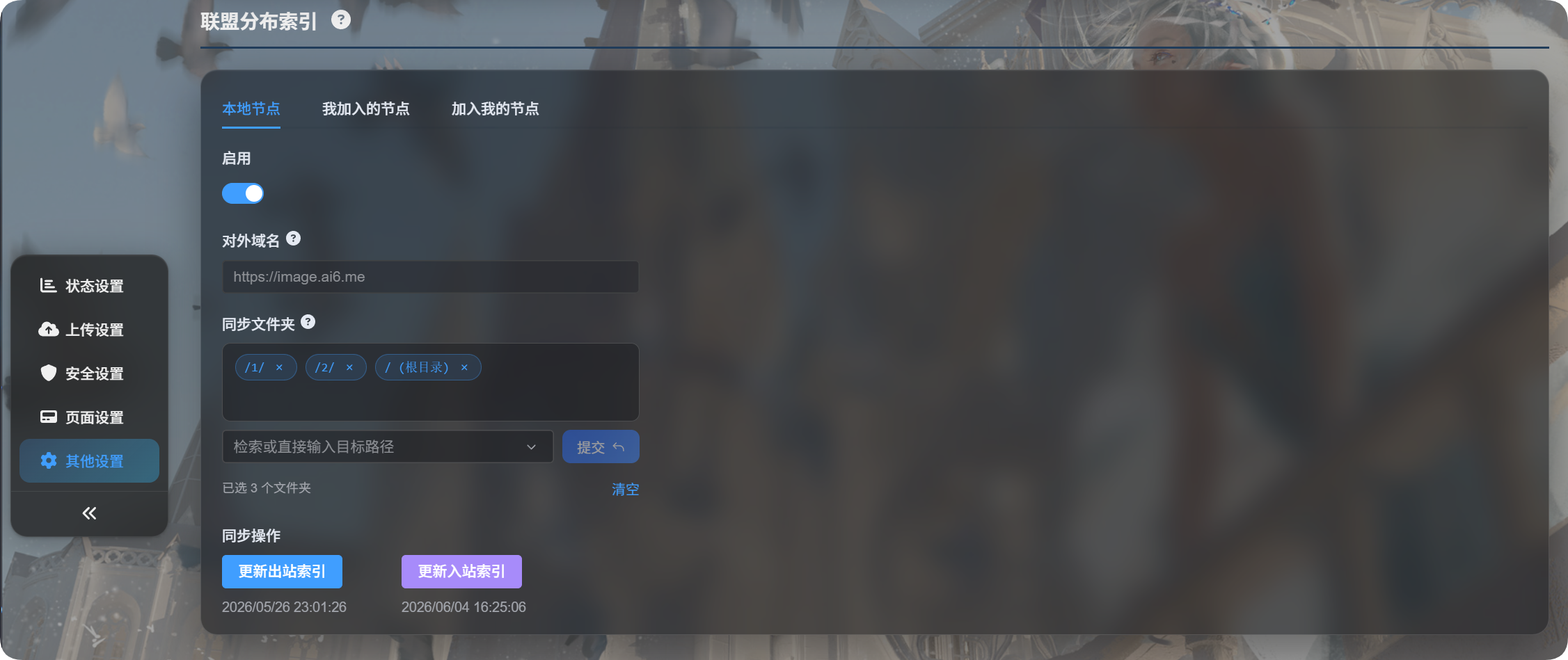
The page has three tabs:
| Tab | Purpose |
|---|---|
| Local Node | Enable your node, confirm public domain, select shared folders, and update outbound index |
| Nodes I Joined | Manage other ImgBed nodes you have joined |
| Nodes Joining Me | Manage requests from others who want to join your node |
First-Time Setup
- Open
Local Node. - Turn on
Enable. - Select folders to share under
Sync folders. - Click
Update Outbound Index. - If ImgBed detects a domain change, confirm that the current domain is correct before continuing.
You can select multiple sync folders.
If the sync folder list is empty, all folders are shared.
Local Node
Public Domain
The public domain is the site URL other nodes use to access your node.
ImgBed detects this automatically. You do not need to type it manually. The first time you update the index, ImgBed asks you to confirm whether the current access URL is the production domain.
If you change domains later, updating the index will ask for confirmation again.
Sync Folders
Sync folders decide which files are shared with federation nodes.
For example, if you select only:
text
/1/
/2/
Other nodes can only see files in those two directories.
Update Outbound Index
This updates the file list that other nodes can sync from you.
Use it when:
- You enable federation for the first time.
- You upload files you want to share.
- You change sync folders.
- You change the public domain and need to confirm it.
Nodes I Joined
Nodes I Joined is where you subscribe to other nodes.
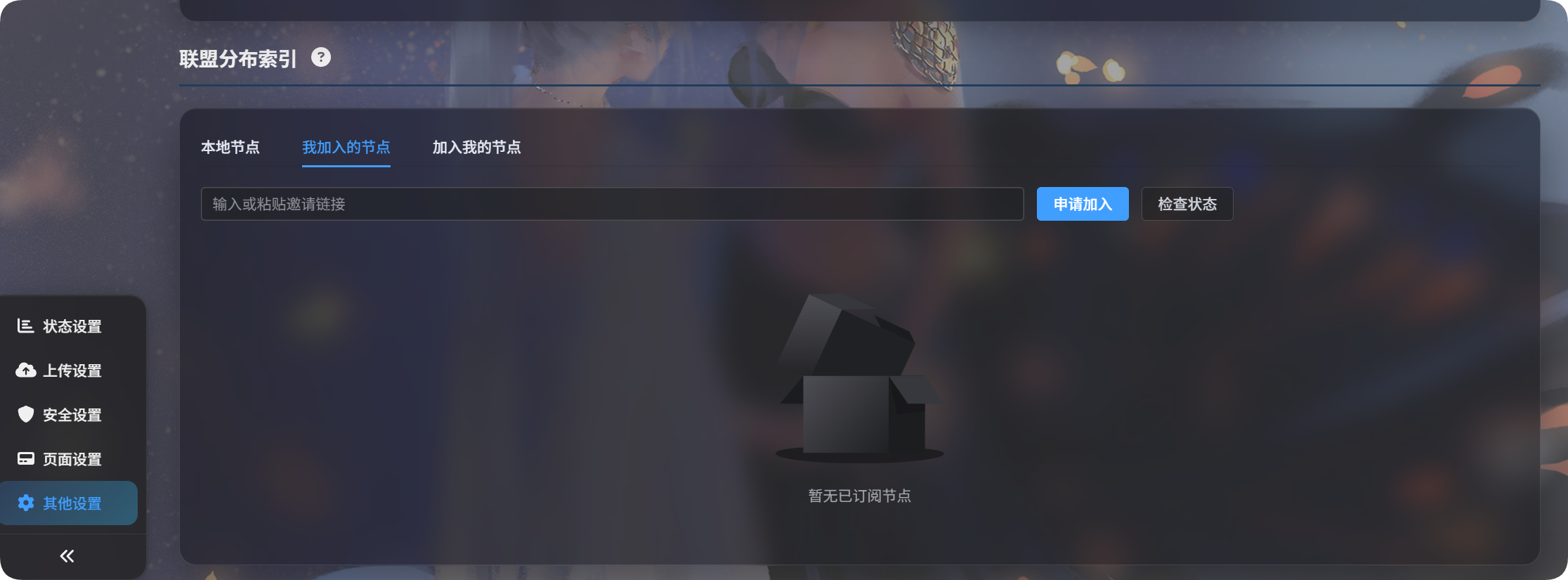
Request To Join Another Node
- Ask the other owner for an invitation link.
- Paste it into the input box.
- Click
Request to Join. - Wait for the other owner to approve it in their admin panel.
After approval, the node status becomes approved.
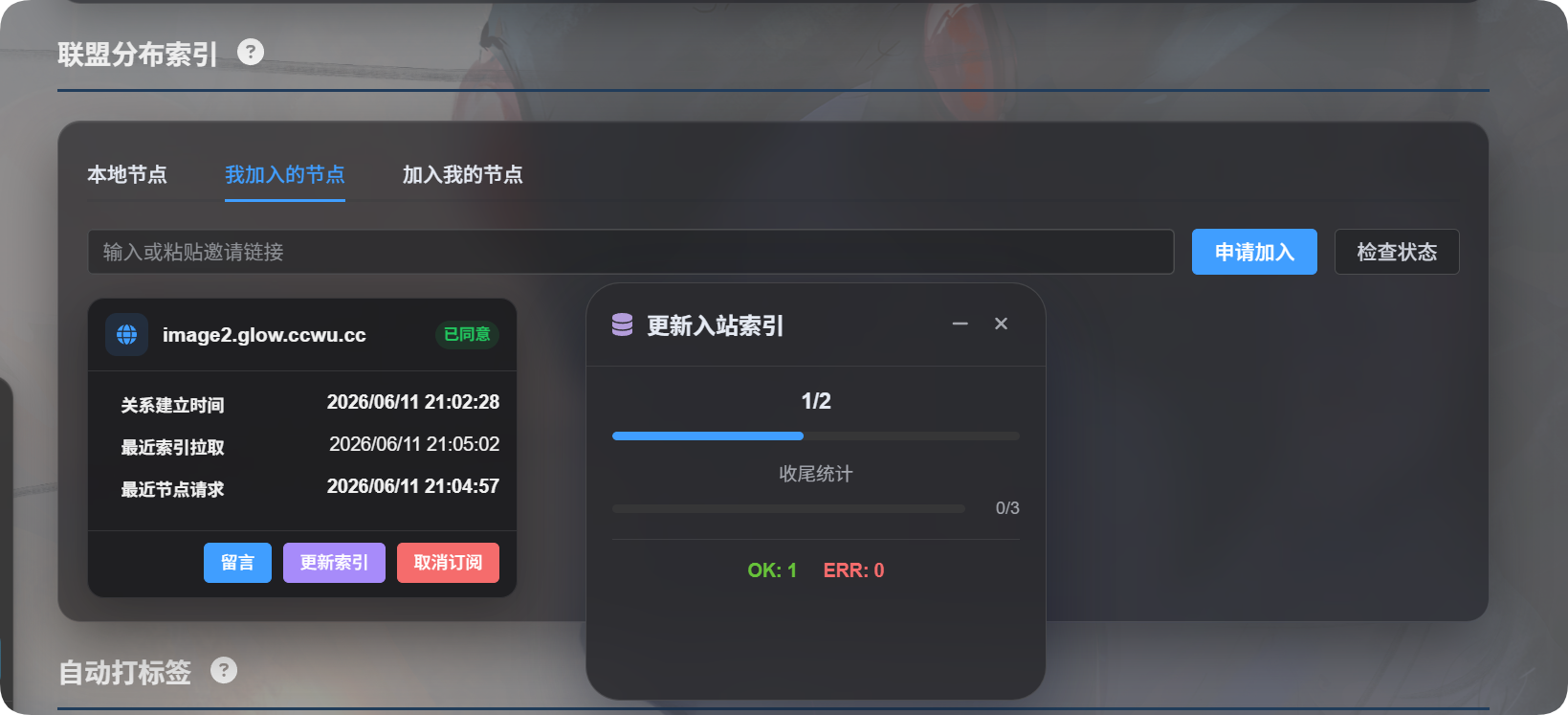
Update Inbound Index
Update Inbound Index syncs file lists from nodes you have joined.
Use it when:
- The other owner has just approved your request.
- The other owner tells you shared content has been updated.
- You want to refresh all joined federation file lists.
To update only one node, click Update Index on that node card.
Unsubscribe
If you no longer want to sync a node, click Unsubscribe.
After unsubscribing, that node's federated index is removed from your local site.
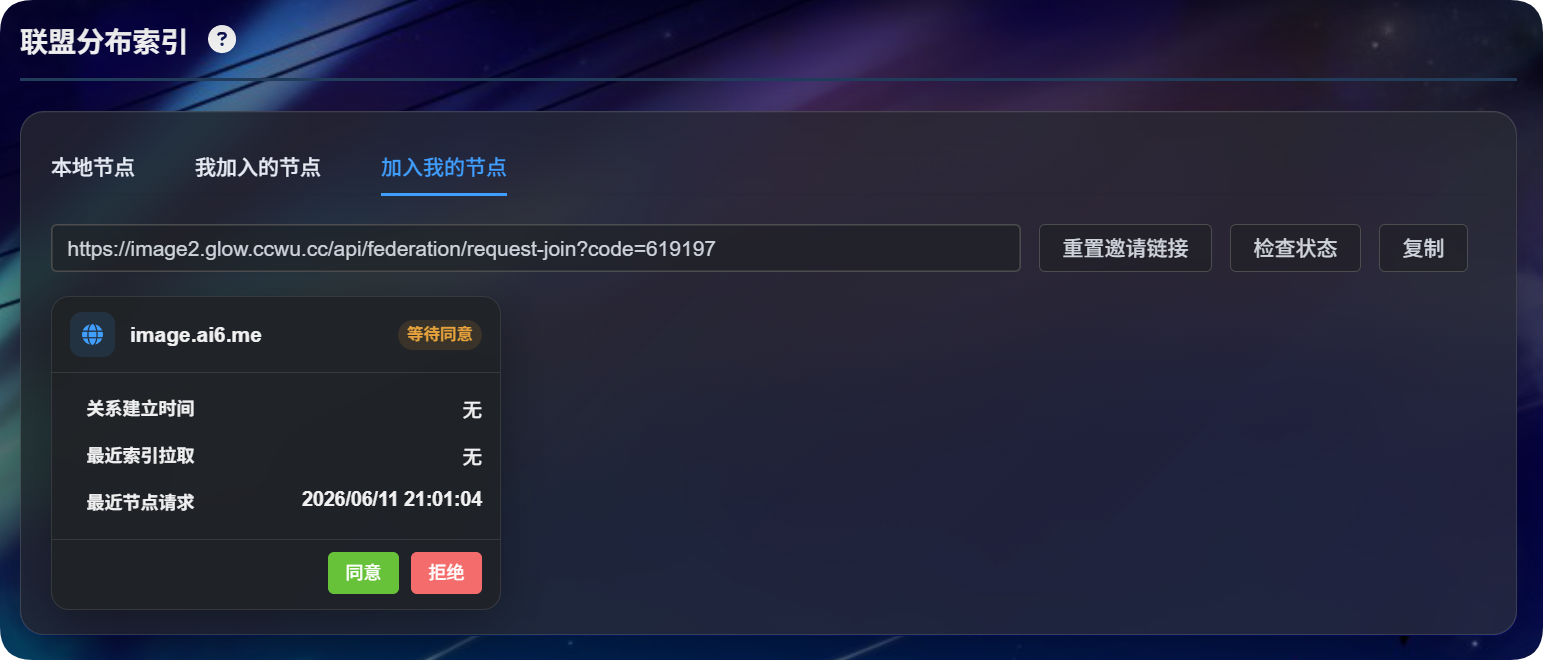
Nodes Joining Me
Nodes Joining Me is where you handle requests from others.
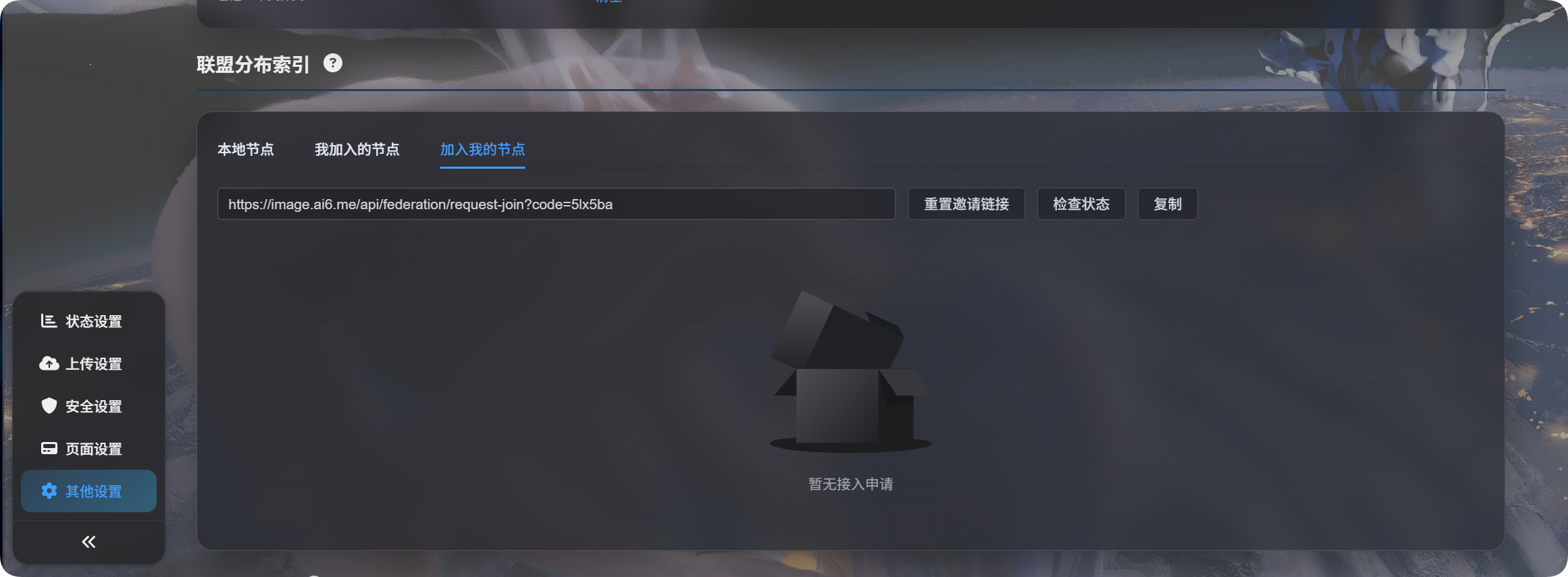
Generate an Invitation Link
- Make sure the local node is enabled.
- Click
Update Outbound Indexat least once so ImgBed confirms the public domain. - Open
Nodes Joining Me. - Click
Reset Invitation Link. - Copy the invitation link and send it to the other owner.
If the invitation link is empty, the public domain usually has not been confirmed yet. Go back to Local Node and click Update Outbound Index.
Handle Join Requests
When someone submits a request, it appears in the Nodes Joining Me list.
| Action | Meaning |
|---|---|
| Approve | Allows the other node to sync your shared file list |
| Reject | Refuses the join request |
| Delete | Removes a finished record |
| Check Status | Checks whether the other side still keeps this relationship |
After approval, the other side still needs to click Update Inbound Index before your shared files appear there.
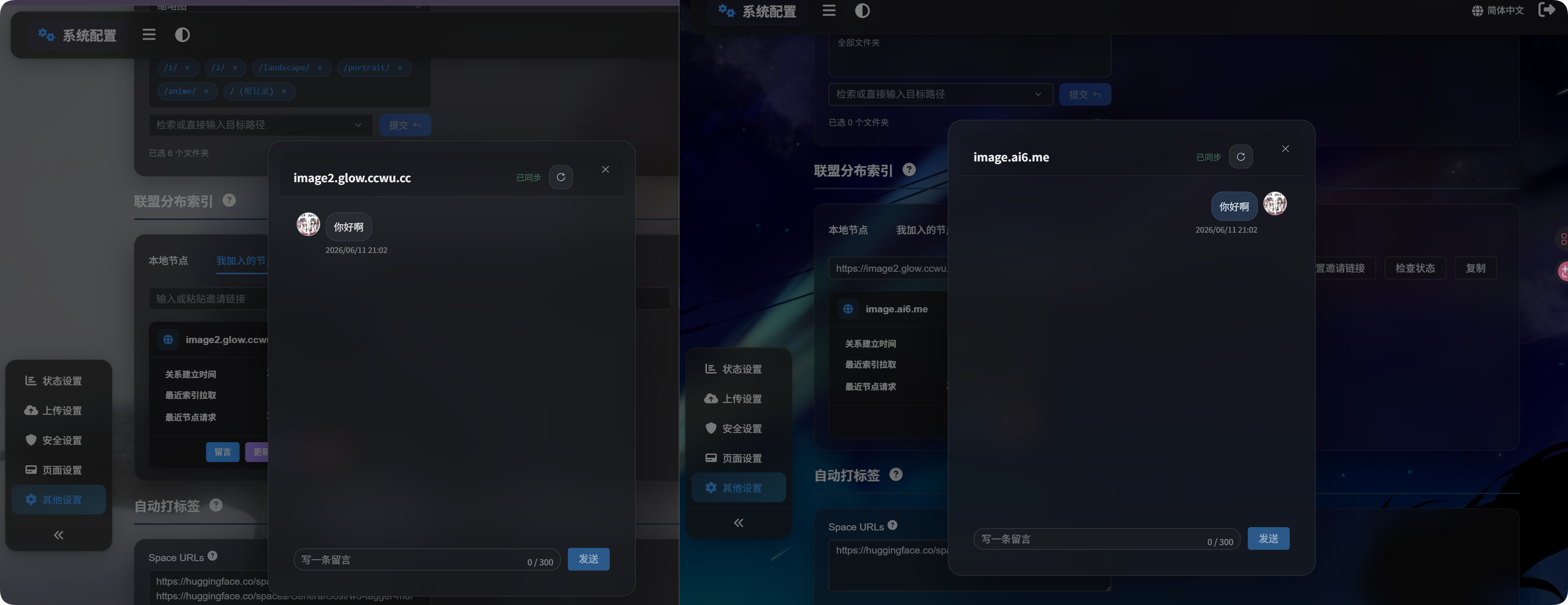
Messages
After a relationship is approved, click Message on the node card.
Messages are only for communication about the federation relationship. They do not change files, tags, directories, or permissions.
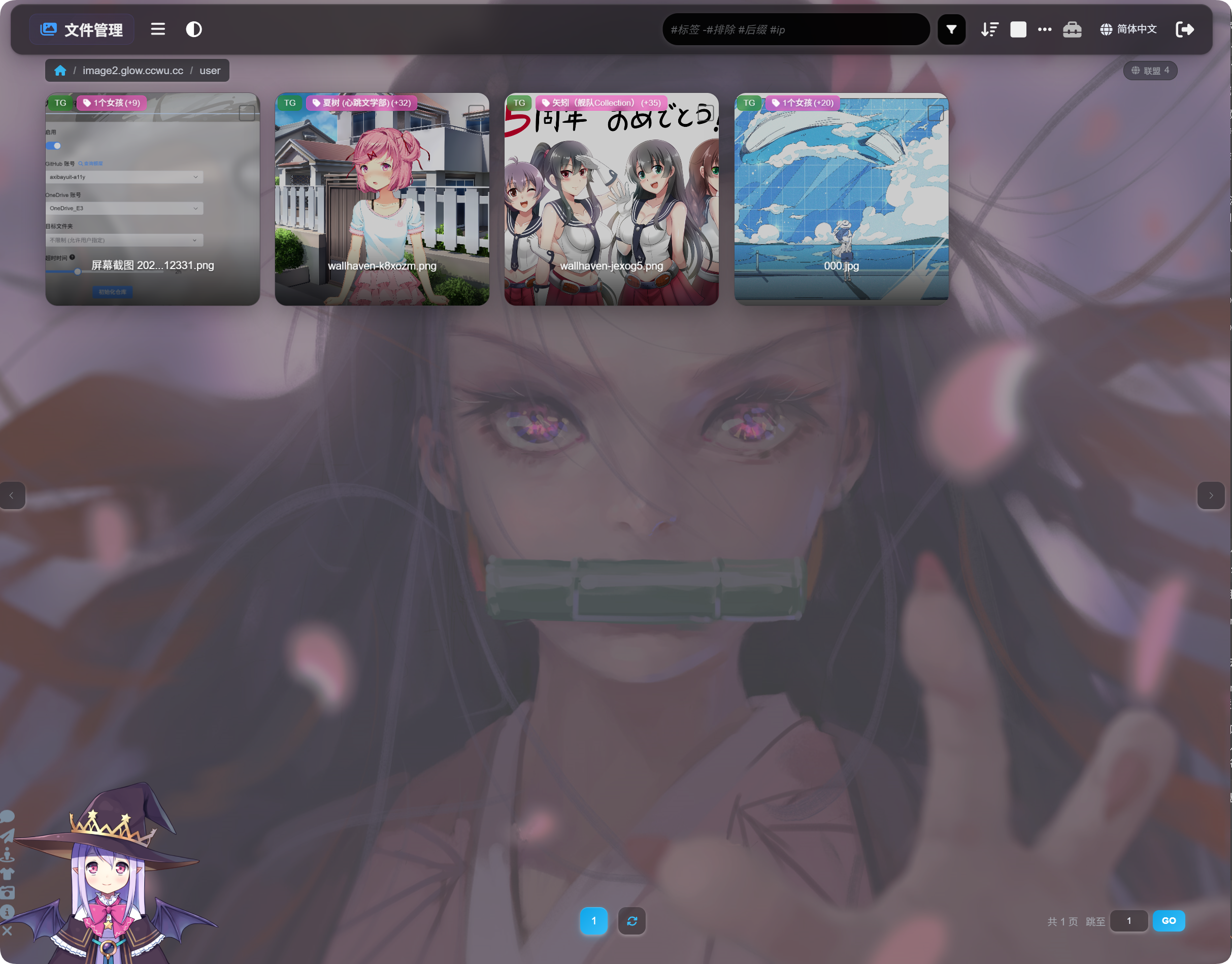
Viewing Federated Files
After sync completes, return to the admin file list.
At the top of the page, switch between local files and federated files. In federated files, you can browse synced content.
Federated files are mainly for viewing, searching, previewing, and copying links. They are not local files, so you cannot move, delete, retag, or back them up from your own site.
FAQ
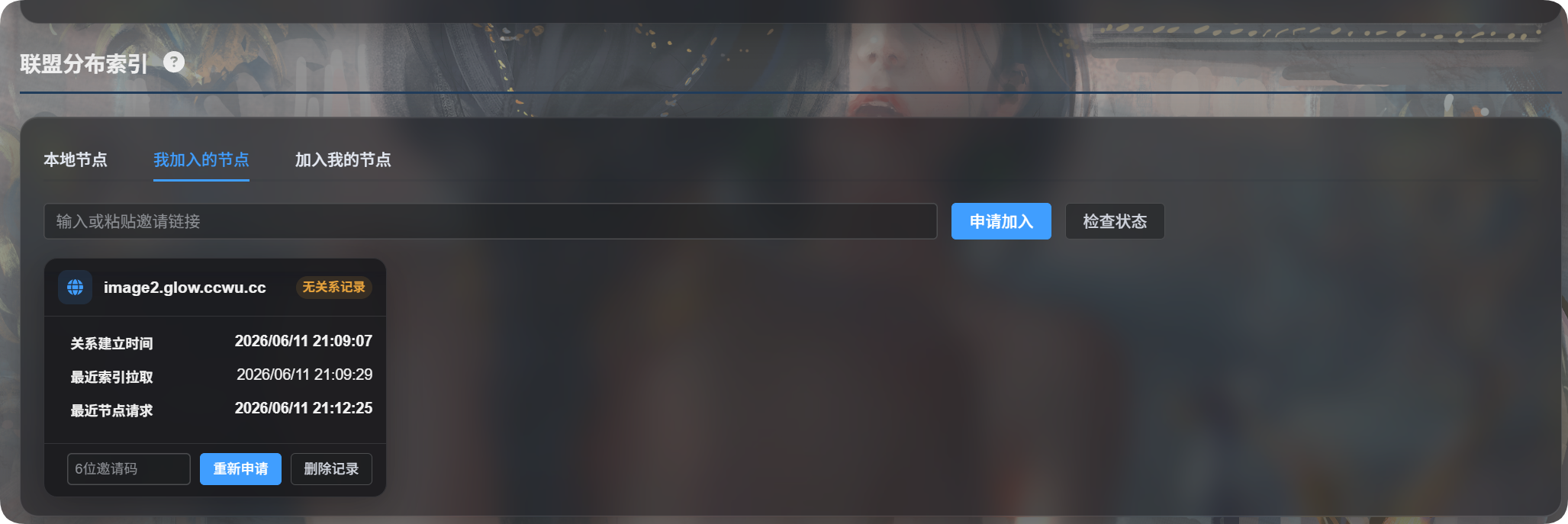
Why Does It Ask Me To Reapply Because There Is No Relationship Record?
This usually means the other side deleted you and removed the record, so your relationship can no longer be found. Submit a new join request.
Why Can't I See Files After Joining?
Check:
- The other owner has approved your request.
- The other owner has clicked
Update Outbound Index. - You have clicked
Update Inbound Index. - The other owner's sync folders include the directories they want to share.
What Should I Do When Domain Change Is Detected?
If you are currently opening the admin panel through the production domain, confirm and continue.
If you are using a temporary address, cancel, reopen the admin panel using the production domain, then try again.
What Does an Empty Sync Folder List Mean?
An empty sync folder list means all folders are shared.
To share only some directories, select those folders manually.
Difference Between Outbound and Inbound Index Updates
| Button | Simple Meaning |
|---|---|
| Update Outbound Index | Updates what others can sync from me |
| Update Inbound Index | Updates what I have synced from others |