OCR
OCR extracts text from images, scans, and document screenshots.
After recognition, you can copy the result, export it as Markdown, PDF, or Word, or package multiple formats together for download.
What OCR Can Do
| Feature | Description |
|---|---|
| Image text recognition | Extracts text from images, screenshots, and scans. |
| Document layout recognition | Better for tables, formulas, stamps, and mixed text-image layouts. |
| Multiple services | Supports Baidu PaddleOCR, Microsoft Azure Vision, and Google Vision. |
| Copy results | Copy recognized text after processing. |
| Export files | Export Markdown, PDF, and Word. |
| Batch packaging | After recognizing multiple files, download results as a package. |
Configure OCR Services First
Open:
text
System Settings -> Other Settings -> OCR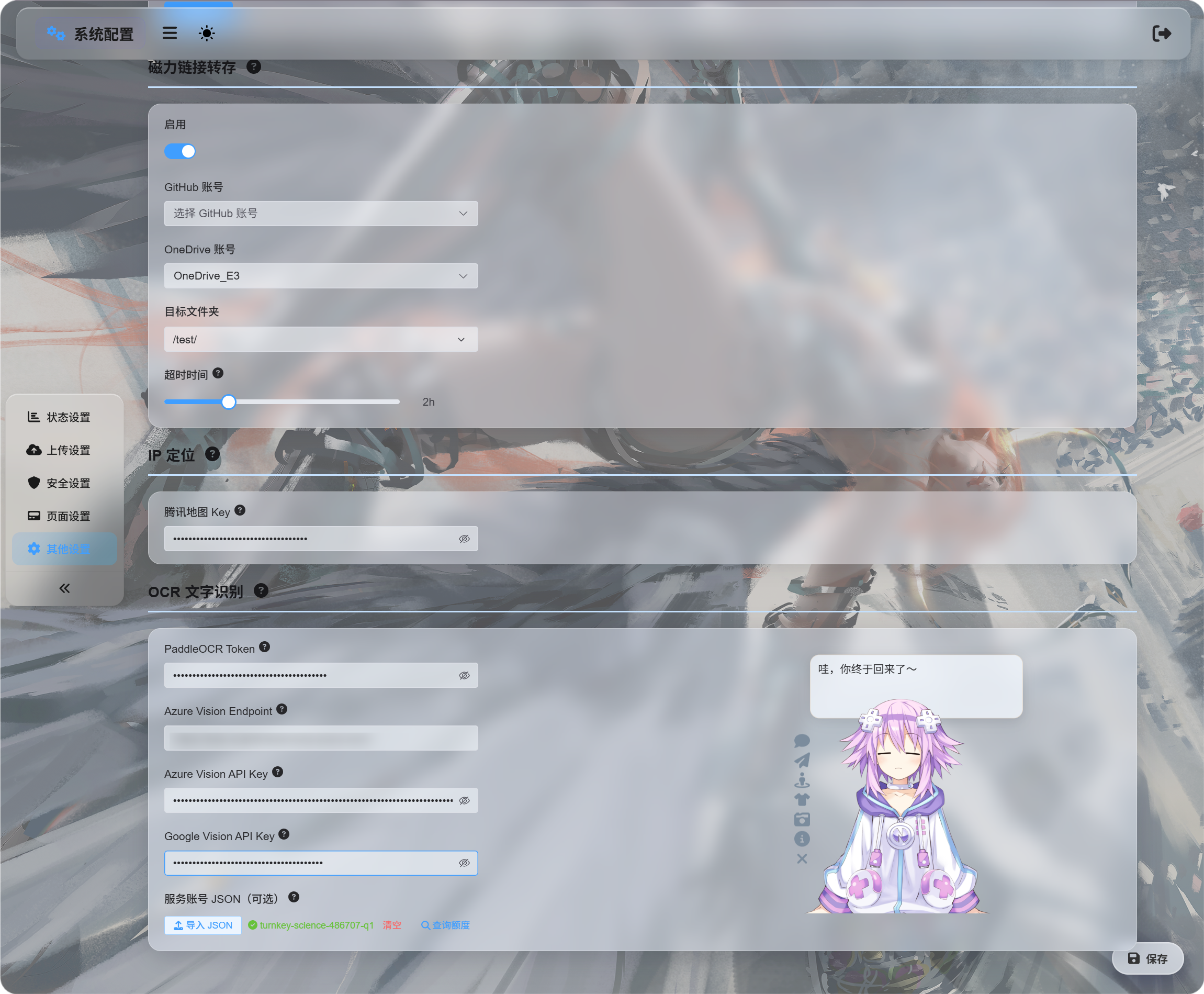
Fill in credentials for the services you want to use:
| Service | What To Enter | Best For |
|---|---|---|
| Baidu PaddleOCR | PaddleOCR Token | Recommended first choice. Good for documents, images, tables, and mixed layouts. |
| Microsoft Azure Vision | Azure Vision Endpoint and Azure Vision API Key | Useful if you already use Microsoft cloud services. |
| Google Vision | Google Vision API Key. Service account JSON is only used for quota query. | Useful if you use Google Cloud services. |
Save after filling in credentials.
You can configure only one service for initial testing. You do not need all three.
Google Vision Setup
Google setup has two parts:
| Goal | Requirement |
|---|---|
| Use OCR | Enable Cloud Vision API, then create an API Key. |
| Query usage | Create a service account, grant Monitoring Viewer, then download the service account JSON. |
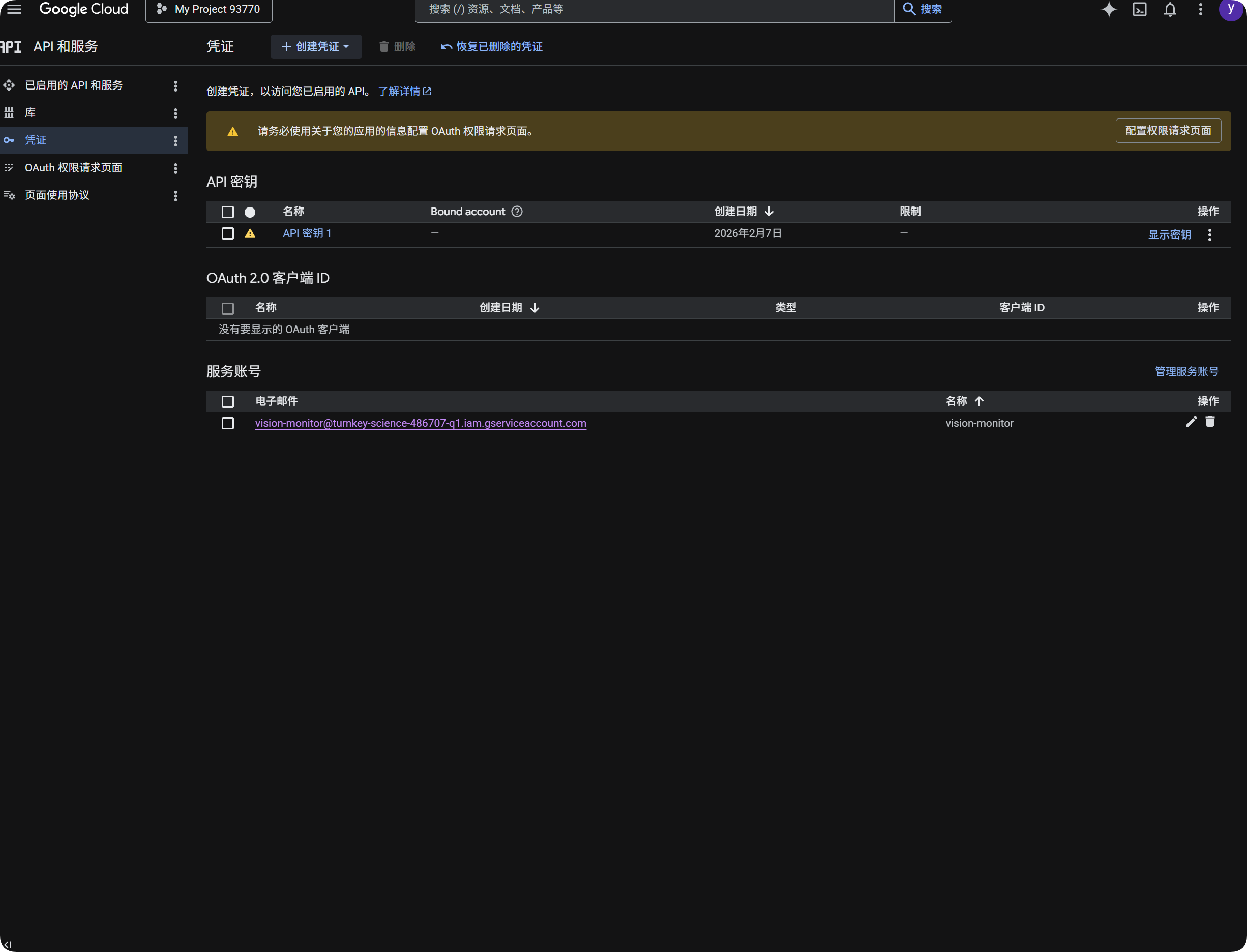
Use Google for OCR
- Open Google Cloud Console.
- Go to
APIs & Services. - Open
Library, search forCloud Vision API, and enable it. - Return to
Credentials. - Create an
API Key. - Open the API Key and copy it.
- Paste it into
Google Vision API Keyin ImgBed. - Save.
You can then choose Google Vision in the OCR dialog.
Query Google Usage
Quota query is not required for recognition.
It only shows roughly how many Google Vision calls were used in the last 30 days.
- In Google Cloud Console, open
IAM & Admin. - Open
Service Accounts. - Create a service account, such as
vision-monitor. - Grant it the
Monitoring Viewerrole. - Open the service account details and create a key.
- Choose
JSON. - Download the generated JSON file.
- Return to ImgBed and import it under service account
JSON(optional). - After import succeeds, click quota query.
After import, ImgBed shows the project name that owns the service account. When querying usage, ImgBed reads Google monitoring data and shows this month's call count.
In short:
| Item | Purpose |
|---|---|
Google Vision API Key | Performs OCR recognition. |
Service account JSON | Queries how many Google Vision calls were used. |
Monitoring Viewer role | Allows the service account to read usage data. |
Get a Baidu PaddleOCR Token
Baidu PaddleOCR requires an access token.
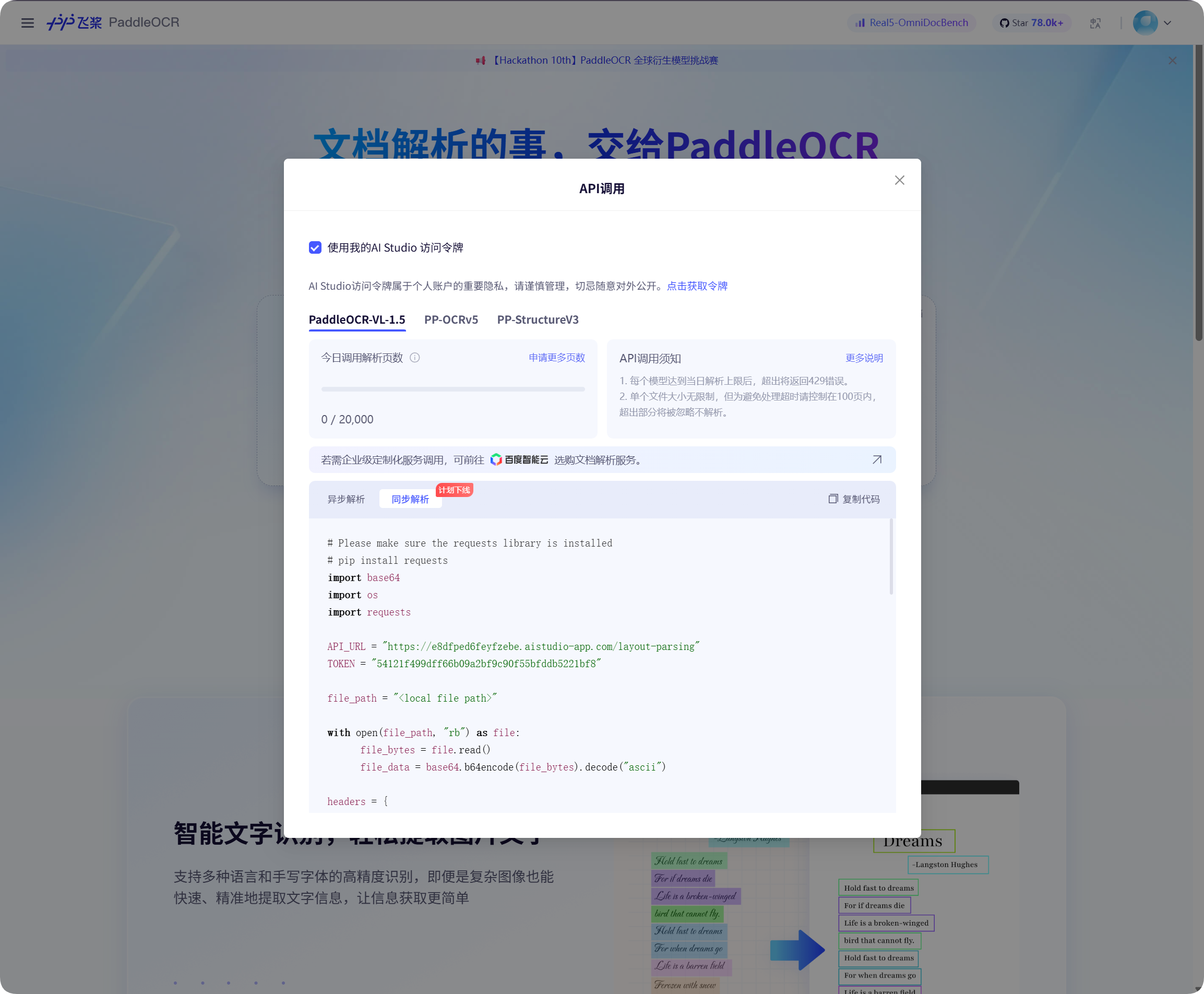
Open the API call window on the Baidu PaddleOCR page, click to get a token, then copy it.
Return to ImgBed, paste it into PaddleOCR Token, and save.
Start Recognition
In File Management, select an image or document screenshot and click OCR.
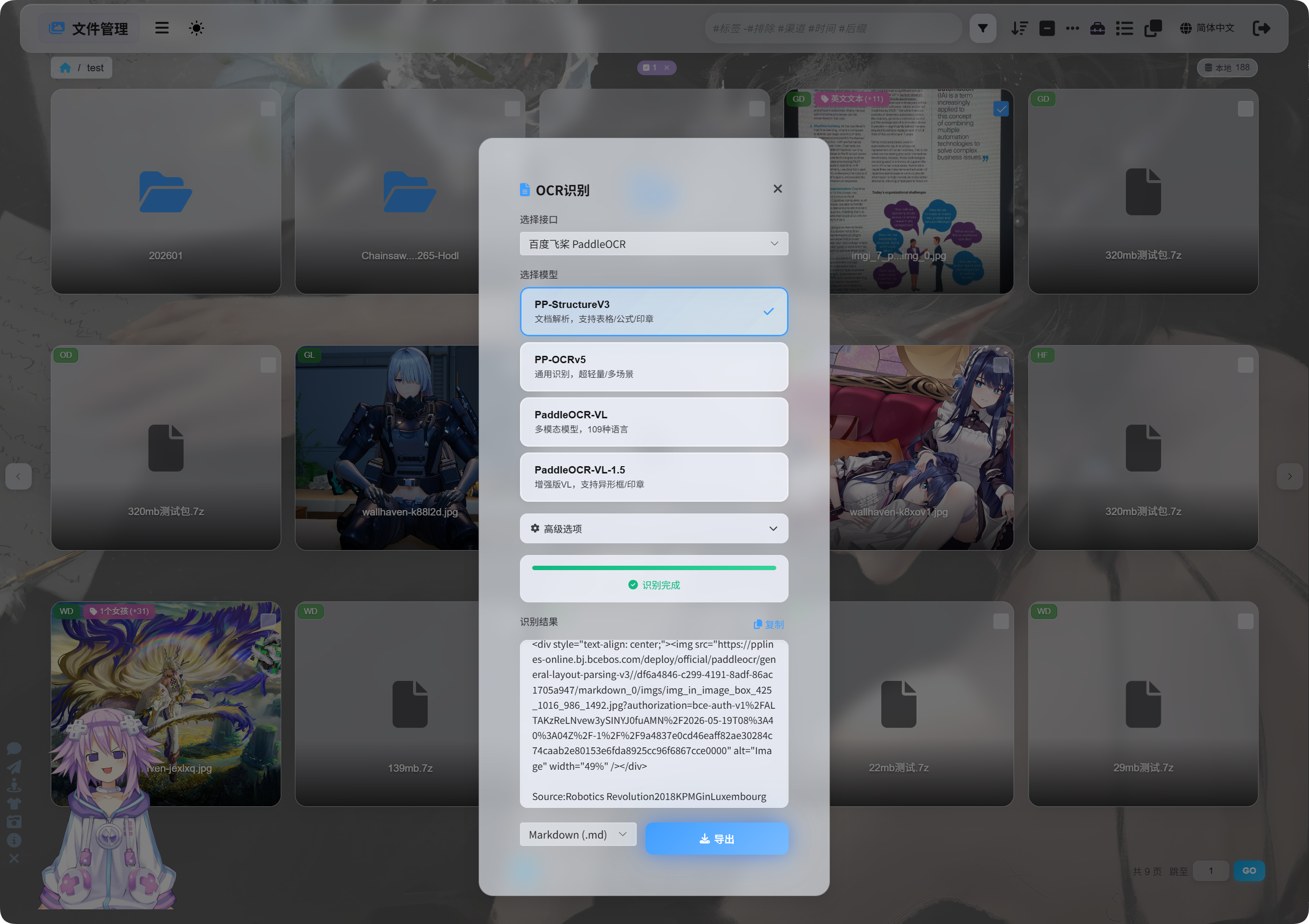
In the dialog, choose the recognition service and model.
Common PaddleOCR model choices:
| Model | Best For |
|---|---|
PP-StructureV3 | Recommended default. Good for documents, tables, formulas, stamps, and mixed layouts. |
PP-OCRv5 | Simple images, ordinary text, and lightweight recognition. |
PaddleOCR-VL | Multilingual, complex images, and chart-like content. |
PaddleOCR-VL-1.5 | More complex document pages and layout recovery. |
If you are unsure, start with PP-StructureV3.
Advanced Options
| Option | Description |
|---|---|
| Orientation correction | Use when the image is rotated or skewed. |
| Document flattening | Use for photographed documents with curvature or tilt. |
| Layout detection | Use when you want to preserve headings, paragraphs, tables, and image structure. |
| Chart recognition | Use when the image contains charts or complex structures. |
Beautify Markdown | Makes exported Markdown easier to read. |
For regular screenshots, keep options minimal. For document scans, enable more document-related options.
View Results
After recognition finishes, the dialog shows the result.
You can copy it directly or choose export formats.
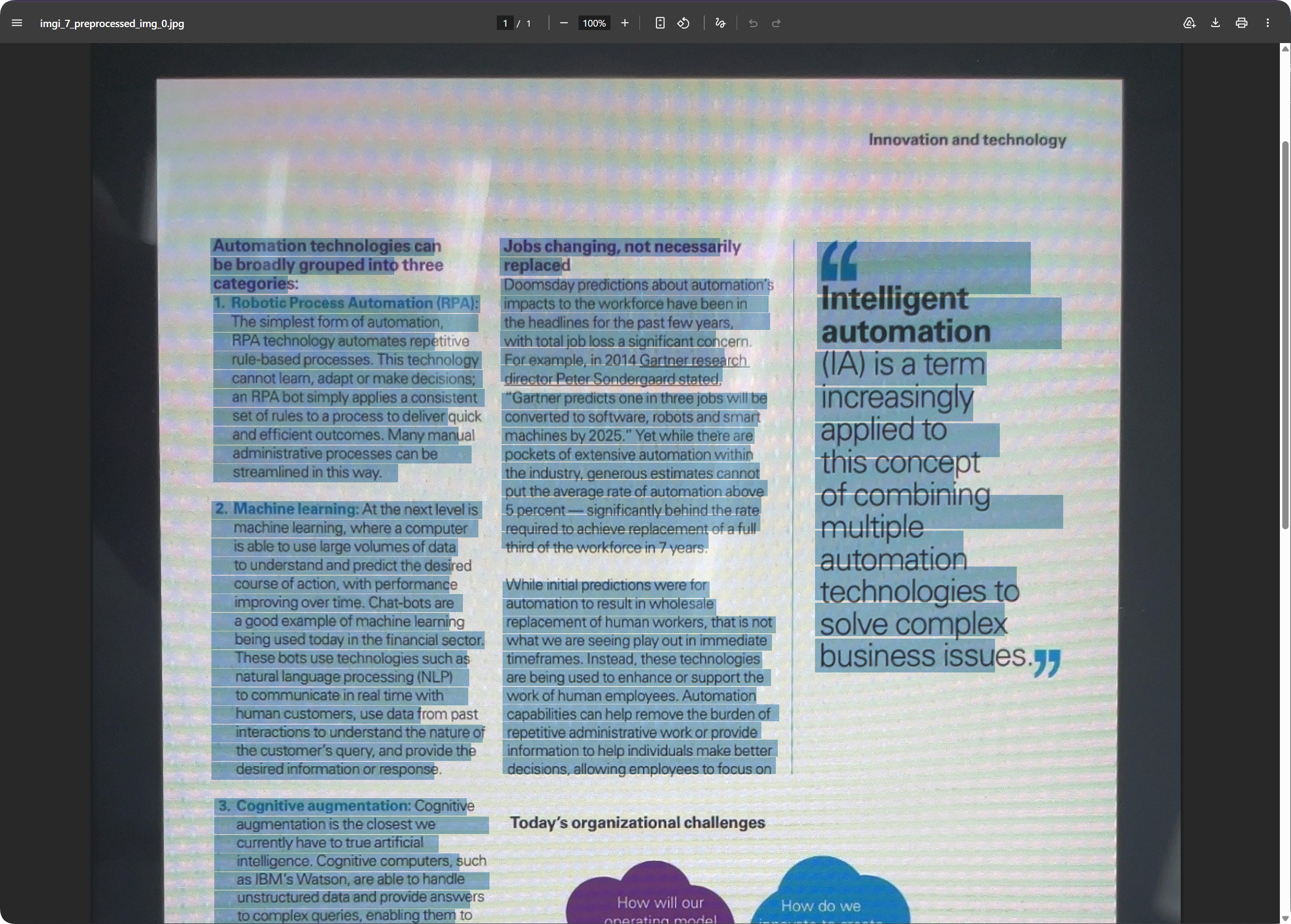
For document pages, exported PDF can preserve page appearance while keeping text searchable. This is useful for archiving scans and finding content later.
Choosing an Export Format
| Format | Best For |
|---|---|
Markdown (.md) | Notes, documentation systems, and later editing. |
PDF (.pdf) | Preserving page appearance and scanned document results. |
Word (.docx) | Continued layout editing, text modification, and handoff to others. |
| Export all | Saves multiple formats and the original image, suitable for important archives. |
If you only need text, export Markdown.
If you need page appearance, use PDF or Word.
Word Output
Exported Word documents can be opened and edited with office software.
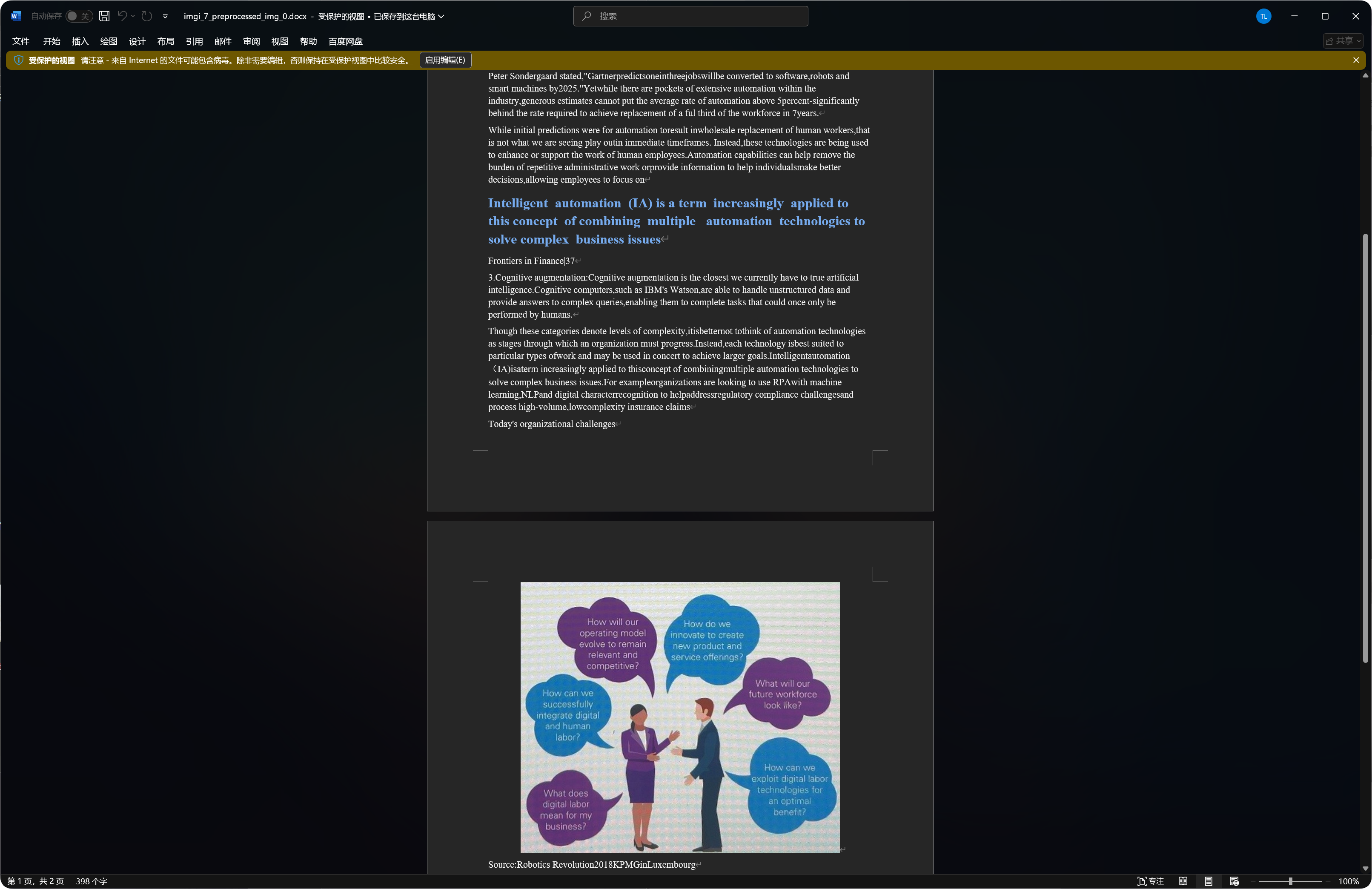
Some documents include recognized images, headings, and paragraphs in the Word output.
Recognition quality depends on original image clarity, model choice, and document complexity.
Best File Types for OCR
| File Type | Recommendation |
|---|---|
| Clear screenshots | Recognize directly. |
| Scans | Prefer PP-StructureV3. |
| Photographed documents | Enable orientation correction and document flattening. |
| Tables, formulas, stamps | Prefer structured models. |
| Simple short text images | PP-OCRv5 is usually enough. |
Clearer images with straighter text usually produce better results.
Common Cases
| Case | Meaning |
|---|---|
| Recognition fails | Check that the service token or key has been saved. |
| Recognition is slow | Complex documents and large images take longer. |
| Table is incomplete | Try a structured model. |
| Text has mistakes | Blur, glare, and skew increase recognition errors. Try a clearer image. |
| Word output contains many images | Structured models may preserve some recognized images. This is normal. |
Google Quota Query Fails
Check:
- Service account
JSONhas been imported. - The service account has the
Monitoring Viewerrole. Cloud Vision APIis enabled for the project.
If you only need OCR and not usage query, you can ignore the service account JSON and only fill in Google Vision API Key.
Quick Flow
text
Open System Settings
-> Open Other Settings
-> Fill OCR service credentials
-> Save
-> Return to File Management
-> Select a file and click OCR
-> Choose a model
-> Wait for recognition
-> Copy results or export Markdown / PDF / Word