Auto Tagging
Auto tagging is configured under:
text
System Settings -> Other Settings -> Auto TaggingIt automatically generates image tags, which are useful for search, random image filtering, public gallery filtering, and age-rating access control.
What Auto Tagging Can Do
| Feature | Description |
|---|---|
| Generate content tags | Adds tags for people, scenes, objects, art style, and similar visual content. |
| Generate character tags | Useful for anime images and illustrations. |
| Add orientation tags | Adds landscape, portrait, or square. |
| Add image rating | Saves G/S/Q/E rating results for general, sensitive, questionable, or explicit content. |
| Auto-tag on upload | Newly uploaded images enter the tagging flow automatically. |
| Batch tagging | Adds tags to old images in all folders or selected folders. |
What You Need First
Prepare at least one accessible Hugging Face Space URL.
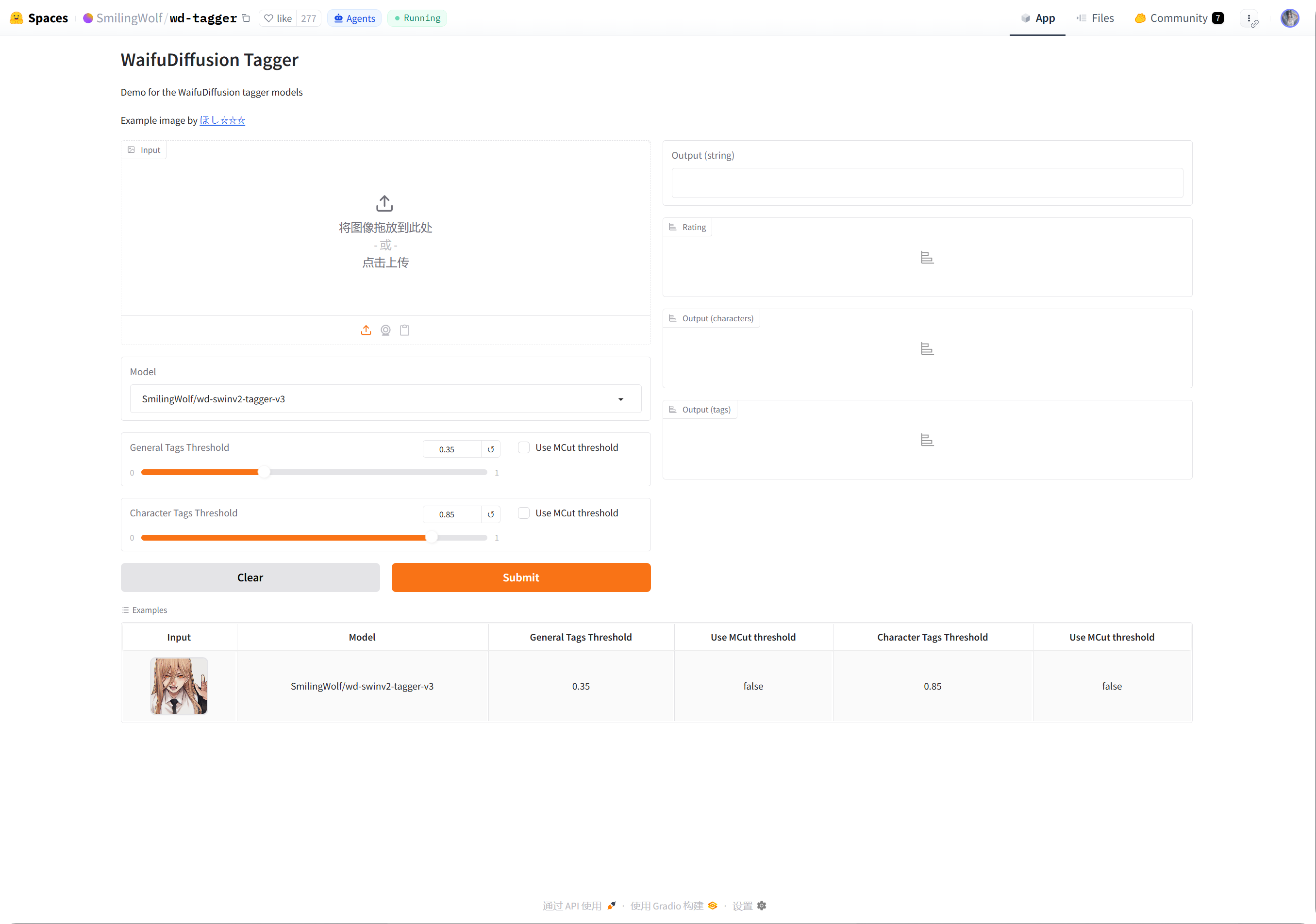
The recommended approach is to duplicate SmilingWolf's wd-tagger Space into your own Hugging Face account:
text
https://huggingface.co/spaces/SmilingWolf/wd-taggerYou can temporarily use the public Space, but public Spaces are shared by many users and may queue, slow down, or become unavailable. A duplicated Space under your own account is more stable for long-term auto tagging.
Duplicate SmilingWolf's Space
- Sign in to Hugging Face.
- Open
https://huggingface.co/spaces/SmilingWolf/wd-tagger.
- Click the three-dot menu in the upper-right corner.
- Choose
Duplicate this Space. - Keep the default Space name or choose your own name, such as
wd-tagger. - Set visibility to
Public. Public Spaces are easier for ImgBed to call. - Keep the default free hardware at first. Upgrade later only if queueing becomes obvious.
- Create the Space and wait for the build to finish.
After the build finishes, open your Space page. The URL usually looks like:
text
https://huggingface.co/spaces/your-name/wd-taggerCopy the browser URL and paste it into ImgBed's Space URLs.
Filling Multiple Space URLs
Enter one Space URL per line.
Examples:
| Value | Description |
|---|---|
https://huggingface.co/spaces/SmilingWolf/wd-tagger | SmilingWolf public Space. Good for temporary testing. |
https://huggingface.co/spaces/lintonxue00/wd-tagger | A copied Space page URL. |
https://huggingface.co/spaces/your-name/wd-tagger | Your own duplicated Space page URL. |
You can enter multiple URLs. ImgBed uses multiple Spaces together, which can improve speed.
If one Space is temporarily unavailable, the others can continue processing.
Settings
| Option | Recommendation |
|---|---|
Space URLs | Enter the Space URLs you prepared. Use at least one. |
| Target folder | Leave empty for all folders. Select a folder only when you want to process a specific directory. |
| Recognition model | Keep wd-swinv2-tagger-v3 by default. |
| General tag threshold | Default works for most images. Lower values produce more tags; higher values produce fewer tags. |
| Character tag threshold | Default is conservative and helps avoid incorrect character tags. |
MCut automatic threshold | Leave off at first. Turn it on when you want the model to decide tag count automatically. |
| Auto-tag on upload | Turn on if newly uploaded images should automatically get tags. |
| Start tagging | Manually batch-tag old images. |
Recommended Starting Values
| Option | Recommended Value |
|---|---|
| Recognition model | wd-swinv2-tagger-v3 |
| General tag threshold | 0.35 |
| Character tag threshold | 0.85 |
MCut | Off at first |
| Auto-tag on upload | Enable if needed |
If there are too many tags, raise the general threshold slightly.
If there are too few tags, lower the general threshold slightly.
Batch Tagging
- Fill in
Space URLs. - Select a target folder.
- Click start tagging.
- Wait for progress to finish.
If the target folder is empty, ImgBed processes all folders.
Batch tagging is best for old images. For new images, enable auto-tag on upload so you do not need to run it manually each time.
Auto-Tag on Upload
After auto-tag on upload is enabled, newly uploaded images automatically call the configured Space URLs.
This is suitable for long-term use.
If your Space is queueing, the upload itself can still finish first, and tagging continues afterward.
Which Images Are Processed
Auto tagging mainly processes image files.
Images that already have complete tags, orientation, rating, width, and height are skipped to avoid unnecessary Space calls.
ImgBed fills only missing information when possible. For example, if only orientation is missing, it tries to add orientation without calling the full content tag flow.
FAQ
Why Duplicate My Own Space?
Public Spaces are shared by many users. Your own duplicated Space is mainly used by your ImgBed site, so it is usually faster and more reliable.
The Space Keeps Starting Up
After first creation, or after a long idle period, a Space may need time to start.
Open your Space page first. After it can recognize an image normally, return to ImgBed and start tagging.
How Do I Copy the Space URL?
Open your Hugging Face Space page and copy the browser address.
Examples:
text
https://huggingface.co/spaces/lintonxue00/wd-tagger
https://huggingface.co/spaces/SmilingWolf/wd-tagger
Can I Add Multiple Spaces?
Yes. Enter one Space URL per line.
Multiple Spaces process images together and are useful when you have many images.
Why Are Tags in English?
SmilingWolf models output English tags. This is expected.
The tags are mainly used for search, filtering, the random image API, and public gallery filters.
What Are Rating Tags Used For?
Rating results work with the access mode in Security Settings.
For example, when visitor access is limited by age rating, public browsing and random image features filter images according to those rules.
Quick Flow
text
Sign in to Hugging Face
-> Open SmilingWolf/wd-tagger
-> Duplicate this Space
-> Wait for the Space to build
-> Copy your Space URL
-> Fill Space URLs in ImgBed
-> Choose model and thresholds
-> Start tagging or enable auto-tag on upload