Hugging Face 채널 추가
시작하기 전에 필요한 항목
필요한 항목은 세 가지뿐입니다.
| 요구 사항 | 목적 |
|---|---|
| Hugging Face 계정 | 액세스 토큰을 생성하고 리포지토리를 소유하는 데 사용합니다. |
| Hugging Face User Access Token | ImgHost가 Hugging Face API에 접근하고, 리포지토리를 만들고, 파일을 업로드하는 데 사용합니다. |
| Repository name | 리포지토리 이름만 입력할 수 있습니다. 예: image. |
설정 단계
단계 1: Hugging Face에 로그인하고 Access Token 만들기
- Hugging Face에 로그인합니다.
- 오른쪽 위의 아바타를 클릭하고
Settings를 엽니다. - 왼쪽 사이드바에서
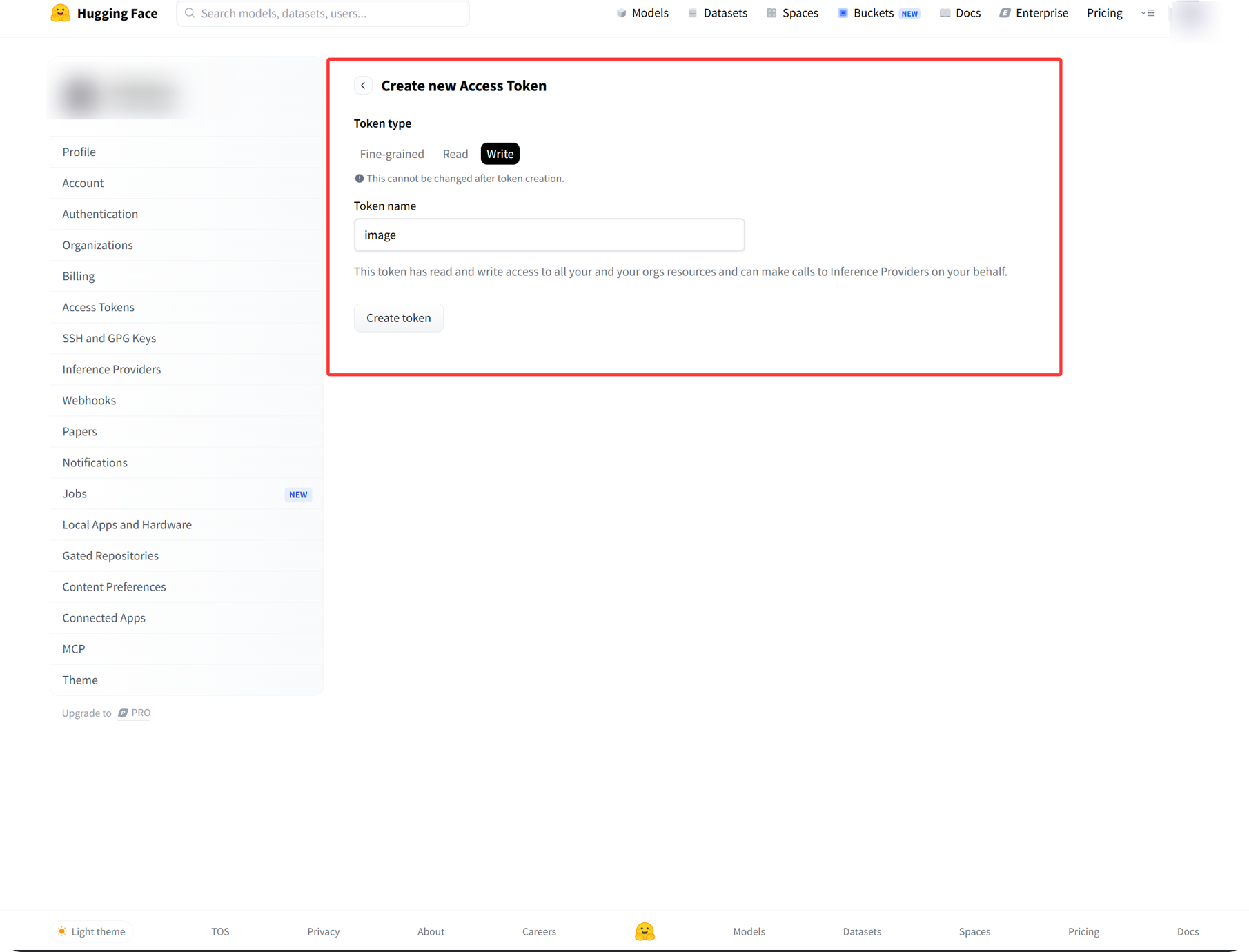
Access Tokens를 엽니다. - 새 토큰을 만듭니다.
- 토큰에 알아보기 쉬운 이름을 지정합니다.
write권한을 선택합니다.- 생성되자마자 토큰을 복사하고 저장합니다.
단계 2: ImgHost에 Hugging Face 채널 입력
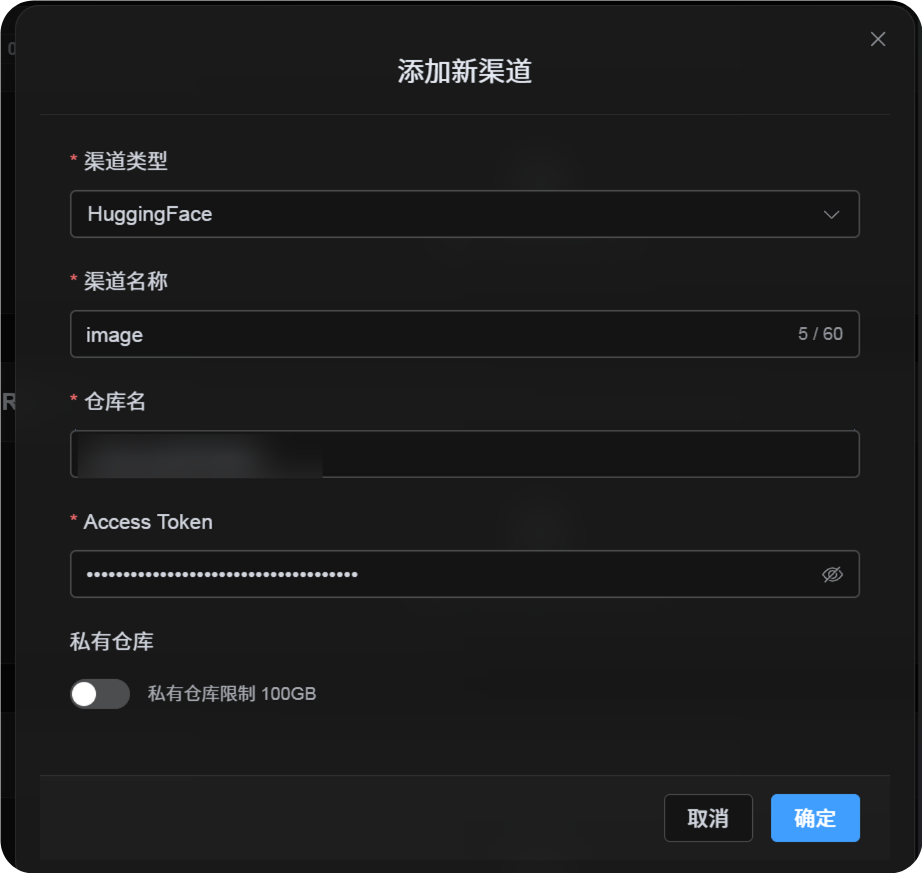
업로드 설정에서 Hugging Face를 선택한 뒤 다음과 같이 입력합니다.
| UI 필드 | 입력할 내용 |
|---|---|
| 채널 이름 | 원하는 이름. 예: hf-primary. |
| Repository name | image 같은 짧은 repo 이름 또는 username/image 같은 전체 경로. |
| Access Token | 방금 만든 Hugging Face User Access Token. |
| Private repository | 필요에 따라 켜거나 끕니다. |
| Remark | 선택 사항. 예: 기본 업로드 채널. |
단계 3: 채널 저장
필드를 입력한 뒤 저장을 클릭합니다.
그다음 시스템은 다음 세부 사항을 처리합니다.
| 시스템 동작 | 설명 |
|---|---|
| 짧은 repository name | ImgHost는 현재 Hugging Face 계정을 식별하고 값을 전체 리포지토리 경로로 확장합니다. |
| 전체 repository path | ImgHost는 username/repository path를 입력한 그대로 사용합니다. |
| repository 확인 | 현재 개인 계정 경로를 사용하는 경우 리포지토리가 없으면 ImgHost가 생성을 시도합니다. 전체 경로를 수동으로 입력한 경우 ImgHost는 해당 경로를 직접 사용합니다. |
| Repository type | 이 채널은 dataset repository를 사용합니다. |
| 공개/비공개 상태 | 리포지토리 공개 상태는 현재 스위치에 따라 동기화됩니다. |
빠른 체크리스트
text
Sign in to Hugging Face
-> Create an Access Token
-> Select write permission
-> Return to ImgHost and enter the token and repository name
-> Save
-> If only a repo name is entered, ImgHost adds the current username automatically
-> If username/repo is entered, ImgHost uses it as-is
-> ImgHost checks or creates the dataset repository
-> Upload a test image