Cloudflare API Token
Cloudflare API credentials allow ImgHost to purge Cloudflare CDN cache after files change.
Where To Configure It
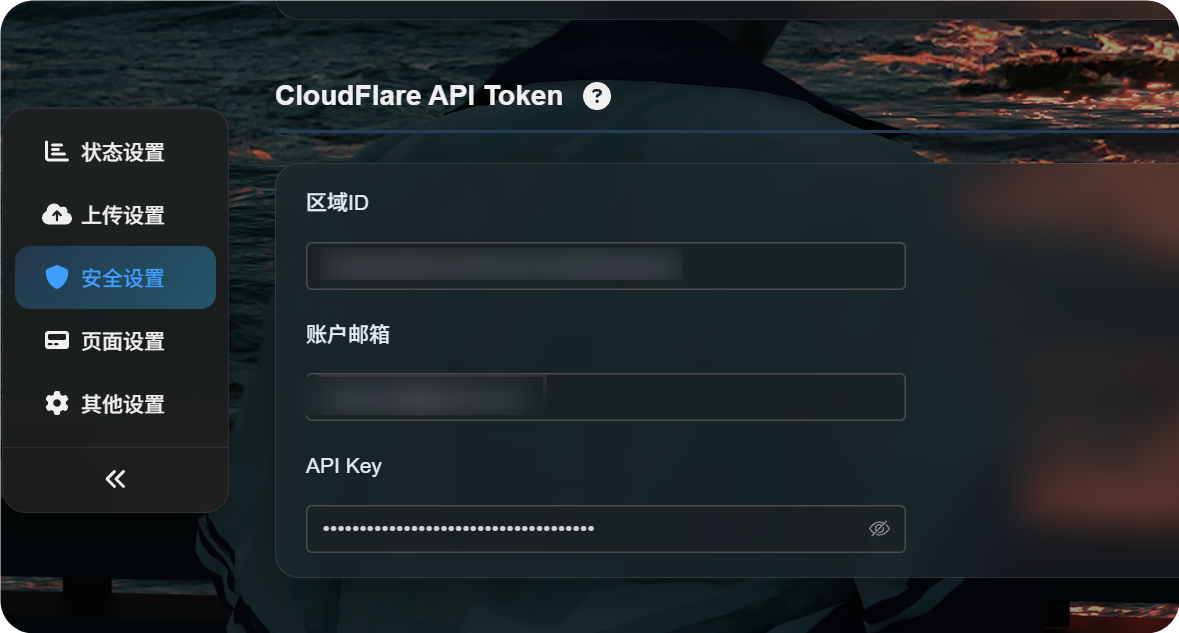
Open the admin panel, then go to:
text
System Settings -> Security Settings -> Cloudflare API TokenYou need to fill in:
- Zone ID
- Account email
- API Key
What This Setting Does
Cloudflare may cache public image URLs.
Caching makes image delivery faster, but it can also leave stale content visible for a while after you delete, block, replace, or move a file.
After Cloudflare API credentials are configured, ImgHost attempts to purge the related Cloudflare cache when those operations finish.
This is useful when:
- You delete an image and want the public link to stop working as soon as possible.
- You block an image and want visitors to stop seeing the original file.
- You replace a file with the same name and want visitors to see the new version sooner.
- You move or rename files and want old path cache to refresh quickly.
- You change public access rules and want public gallery or random image cache to update sooner.
What Happens If You Leave It Empty
ImgHost still works normally without this setting.
The only difference is that ImgHost will not actively purge Cloudflare CDN cache. Visitors may continue to see old content until the Cloudflare cache expires naturally.
How To Find the Zone ID
The Zone ID is the Cloudflare Zone ID of the site used by your ImgHost domain.
- Sign in to the Cloudflare dashboard.
- Open the site that contains your ImgHost domain.
- Find
Zone IDon the site overview page. - Copy it into the
Zone IDfield in ImgHost.
This is the site Zone ID, not the account ID.
Account Email
Enter the email address you use to sign in to Cloudflare.
It must match the API Key you provide below.
API Key
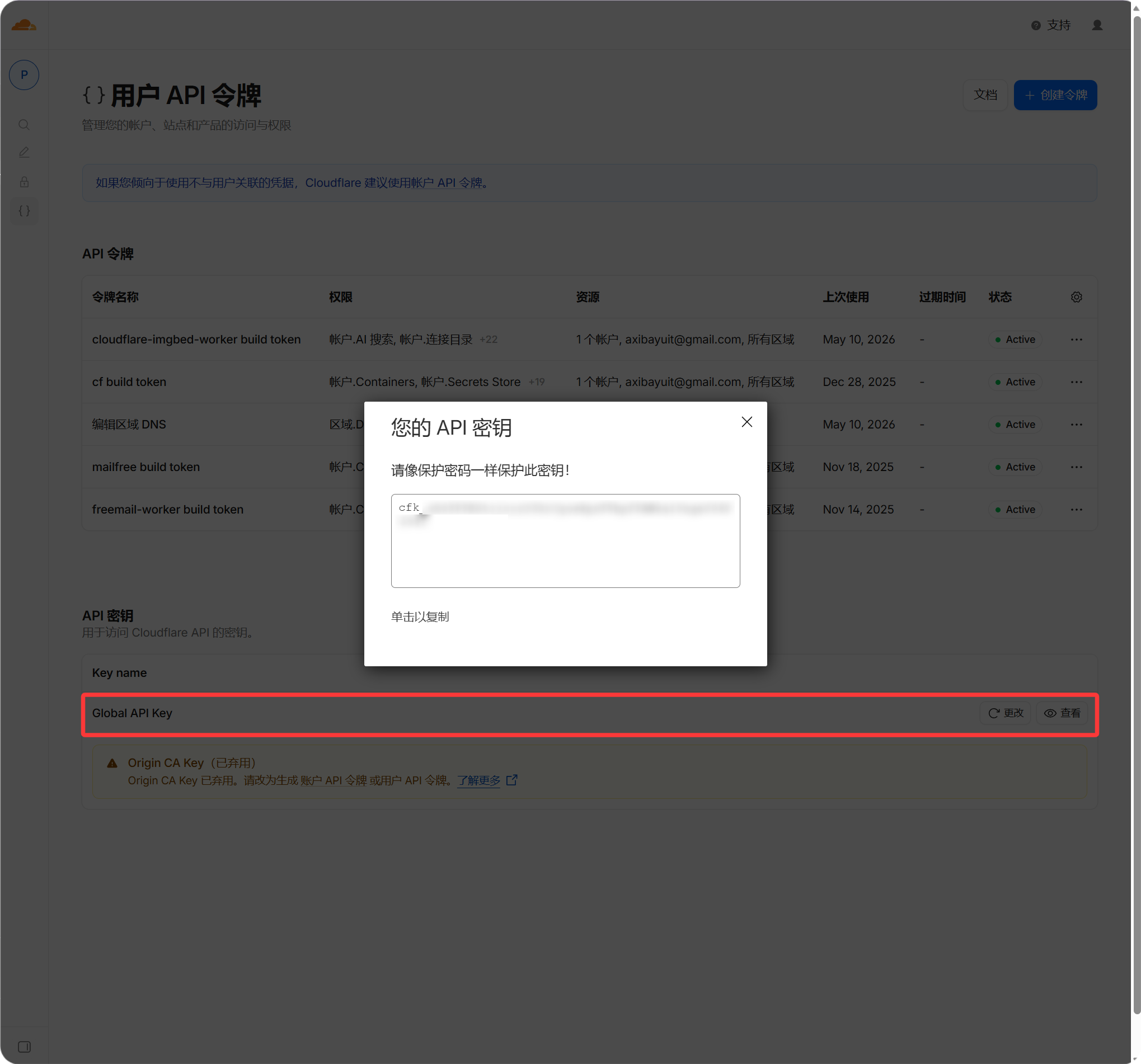
Enter your Cloudflare Global API Key.
- Sign in to the Cloudflare dashboard.
- Open your profile.
- Go to the API Tokens page.
- Find
Global API Key. - View and copy it.
- Paste it into the
API Keyfield in ImgHost.
When It Takes Effect
After filling in the fields, save the settings.
Future file changes will automatically attempt to purge Cloudflare cache. Past operations are not retroactively purged. If you deleted or replaced a file before setting this up, wait for Cloudflare cache to expire or purge it manually in Cloudflare.
FAQ
Is This Required?
No.
If your domain does not use Cloudflare, or you do not mind CDN cache delay, you can leave it empty.
Will Wrong Credentials Break Uploads?
Usually no.
Wrong credentials only prevent ImgHost from purging Cloudflare cache. Upload and normal file access should continue to work.
Why Can a Deleted Image Still Be Opened?
The most common reason is that Cloudflare still has the old file cached.
With correct Cloudflare API credentials, ImgHost purges the related URL cache when a file is deleted.
Why Do I Still See the Old Image After Replacing a File?
This is also usually caused by CDN cache.
After this setting is configured, ImgHost attempts to purge the old URL cache when a file with the same name is overwritten.