API Token File Management
API Token file management is intended for scripts, automation jobs, and third-party management panels. It uses the manage permission to edit file information, move files, rename files, create directory placeholder files, adjust file tags and list status, disable or restore an upload IP, and create or delete short-lived upload Tokens without opening the admin page.
This script only handles lightweight management actions in file management and user management. Uploading, listing, deleting, upload settings, site settings, and federation relations still use their own dedicated scripts.
Before You Start
After entering the admin panel, open:
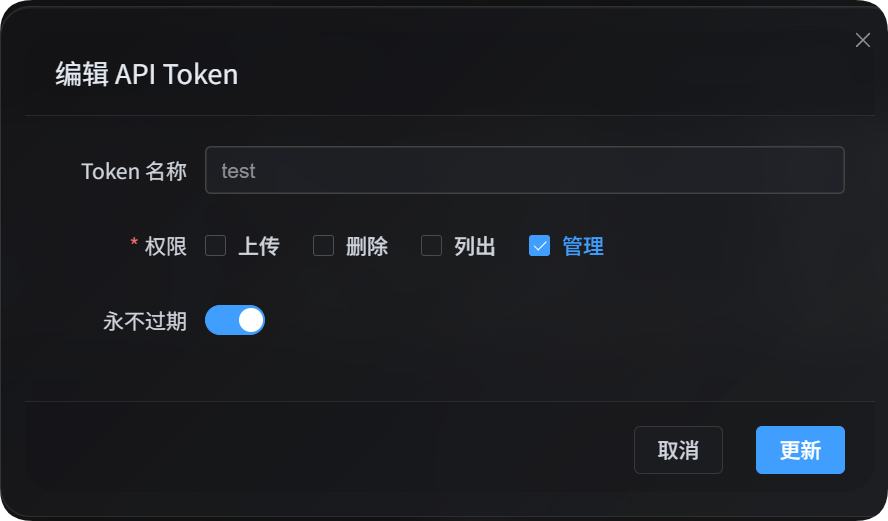
System Settings -> Security Settings -> API Token
When creating or editing an API Token, make sure that the Token is allowed to manage. The manage permission can change file status, user upload status, and create short-lived upload Tokens, so it should only be given to trusted scripts or trusted users.
Write operations in the file management script are in preview mode by default and will not actually be saved. After confirming that the preview is correct, add --apply to perform the write.
You can also put the Token in an environment variable:
powershell
$env:IMGHOST_API_TOKEN="your API Token"Download The Script
| Script | Purpose |
|---|---|
| file management script | File metadata, moderation labels, file tags, list status, move, rename, folder creation, IP blocking/restoration, and short-lived upload Token creation and deletion |
Node.js 18 or later is required to run the script.
Feature Boundaries
| Capability | Script | Permission |
|---|---|---|
| Upload files | imghost-token-single-upload.mjs / imghost-token-chunk-upload.mjs | upload |
| List files, filter files, and read user statistics | imghost-token-list.mjs | list |
| Delete explicitly specified files | imghost-token-delete.mjs | delete |
| Edit file information, tags, lists, move, rename, create folders, disable IPs, and create or delete short-lived upload Tokens | imghost-token-manage.mjs | manage |
| Edit upload channels, security settings, page settings, other settings, and federation relations | Configuration management scripts | manage |
imghost-token-manage.mjs does not upload files, list files, or delete files. When you need to find a fileId, use the listing script to filter files first. When you need to delete a file, pass the explicit fileId to the deletion script.
Common Parameters
| Parameter | Required | Description |
|---|---|---|
--base-url <url> | Yes | ImgHost site URL, for example https://image.ai6.me |
--token <token> | Yes | API Token. You can also use the IMGHOST_API_TOKEN environment variable |
--retries <n> | No | Retry count for temporary failures. Defaults to 3 |
--timeout-ms <n> | No | Timeout for a single request. Defaults to 180000 |
--output <pretty|json> | No | Output format. Defaults to pretty; use json for programmatic calls |
--save-response <path> | No | Save the final result as a JSON file |
--batch-size <n> | No | Number of items processed per request for batch actions. Defaults to 15, maximum 15 |
--apply | No | Actually perform writes. Without it, actions only preview |
-h / --help | No | Show script help |
Confirm fileId First
Most actions in the file management script require a fileId. You can query it with the listing script first:
powershell
node imghost-token-list.mjs `
  --base-url "https://your-domain" `
  --token "your API Token" `
  --files `
  --dir "test4" `
  --count 10 `
  --output json
The name in the returned result is usually the fileId you can pass to the file management script.
File Metadata
File metadata is used to change the displayed file name and read source shown in backend file management.
powershell
node imghost-token-manage.mjs `
  --base-url "https://your-domain" `
  --token "your API Token" `
  --set-metadata `
  --file-id "photos/2026/a.jpg" `
  --file-name "cover.jpg" `
  --read-source backup
After confirming that the preview is correct, save it:
powershell
node imghost-token-manage.mjs `
  --base-url "https://your-domain" `
  --token "your API Token" `
  --set-metadata `
  --file-id "photos/2026/a.jpg" `
  --file-name "cover.jpg" `
  --read-source backup `
  --apply
File Metadata Parameters
| Parameter | Description |
|---|---|
--set-metadata | Modify metadata for a single file |
--file-id <id> | File ID to modify |
--file-name <name> | New backend display name |
--read-source <primary|backup> | Read source. primary is the primary source, and backup is the backup source |
Pass at least one of --file-name and --read-source.
Moderation Labels
Moderation labels correspond to the file's age rating. You can read the current label before changing it.
Read the moderation label:
powershell
node imghost-token-manage.mjs `
  --base-url "https://your-domain" `
  --token "your API Token" `
  --get-label `
  --file-id "photos/2026/a.jpg"
Set the moderation label:
powershell
node imghost-token-manage.mjs `
  --base-url "https://your-domain" `
  --token "your API Token" `
  --set-label `
  --file-id "photos/2026/a.jpg" `
  --label r12 `
  --apply
Moderation Label Parameters
| Parameter | Description |
|---|---|
--get-label | Read the moderation label of a single file |
--set-label | Modify the moderation label of a single file |
--file-id <id> | File ID |
--label <value> | Label value: all-ages, r12, r16, r18, None |
File Tags
File tags attach searchable business tags to files. The script supports reading, replacing, appending, and removing tags. It also supports batch processing for multiple files.
Read file tags:
powershell
node imghost-token-manage.mjs `
  --base-url "https://your-domain" `
  --token "your API Token" `
  --get-tags `
  --file-id "photos/2026/a.jpg"
Add tags:
powershell
node imghost-token-manage.mjs `
  --base-url "https://your-domain" `
  --token "your API Token" `
  --add-tags `
  --file-id "photos/2026/a.jpg" `
  --tag "cover" `
  --tag "2026" `
  --apply
Remove tags:
powershell
node imghost-token-manage.mjs `
  --base-url "https://your-domain" `
  --token "your API Token" `
  --remove-tags `
  --file-id "photos/2026/a.jpg" `
  --tag "cover" `
  --apply
Replace tags:
powershell
node imghost-token-manage.mjs `
  --base-url "https://your-domain" `
  --token "your API Token" `
  --set-tags `
  --file-id "photos/2026/a.jpg" `
  --tag "archive" `
  --tag "public" `
  --apply
Add tags in batch:
powershell
node imghost-token-manage.mjs `
  --base-url "https://your-domain" `
  --token "your API Token" `
  --batch-tags `
  --file-id "photos/2026/a.jpg" `
  --file-id "photos/2026/b.jpg" `
  --tag-action add `
  --tag "batch-test" `
  --apply
File Tag Parameters
| Parameter | Description |
|---|---|
--get-tags | Read tags for a single file |
--set-tags | Replace tags for a single file |
--add-tags | Append tags to a single file |
--remove-tags | Remove tags from a single file |
--batch-tags | Set, append, or remove tags in batch |
--file-id <id> | File ID. For batch actions, pass it multiple times |
--tag <tag> | Tag value. Can be passed multiple times |
--tags-json <path> | Read a tag array from a JSON file |
--tag-action <set|add|remove> | Batch tag action |
Example content for the --tags-json file:
json
["cover", "2026", "public"]Blocklist And Allowlist Status
List status determines the file's access control behavior in public access mode. It can be changed for one file or in batch.
Set a single file to the allowlist:
powershell
node imghost-token-manage.mjs `
  --base-url "https://your-domain" `
  --token "your API Token" `
  --set-list-type `
  --file-id "photos/2026/a.jpg" `
  --list-type White `
  --apply
Add files to the blocklist in batch:
powershell
node imghost-token-manage.mjs `
  --base-url "https://your-domain" `
  --token "your API Token" `
  --batch-list-type `
  --file-id "photos/2026/a.jpg" `
  --file-id "photos/2026/b.jpg" `
  --list-type Block `
  --apply
Restore the default list status:
powershell
node imghost-token-manage.mjs `
  --base-url "https://your-domain" `
  --token "your API Token" `
  --set-list-type `
  --file-id "photos/2026/a.jpg" `
  --list-type None `
  --apply
Blocklist And Allowlist Parameters
| Parameter | Description |
|---|---|
--set-list-type | Change the list status of a single file |
--batch-list-type | Change list status in batch. Each request can process at most 15 files |
--file-id <id> | File ID. For batch actions, pass it multiple times |
--list-type <None|White|Block> | None is the default status, White is the allowlist, and Block is the blocklist |
Moving Files
Moving files moves one or more files to the target directory. The backend processes at most 15 files per request. The script automatically splits the work by --batch-size and executes requests in sequence.
powershell
node imghost-token-manage.mjs `
  --base-url "https://your-domain" `
  --token "your API Token" `
  --move `
  --file-id "photos/2026/a.jpg" `
  --file-id "photos/2026/b.jpg" `
  --target-path "archive/2026" `
  --apply
Move Parameters
| Parameter | Description |
|---|---|
--move | Move files |
--file-id <id> | File ID to move. Can be passed multiple times |
--target-path <dir> | Target directory |
--batch-size <n> | Number of files moved per request. Defaults to 15, maximum 15 |
Rename Or Change Path
Renaming uses explicit old file IDs and new file IDs. The new file ID can change only the file name, or it can change the directory at the same time.
powershell
node imghost-token-manage.mjs `
  --base-url "https://your-domain" `
  --token "your API Token" `
  --rename `
  --old-file-id "photos/2026/a.jpg" `
  --new-file-id "photos/2026/a-renamed.jpg" `
  --apply
For batch renaming, pass --old-file-id and --new-file-id repeatedly:
powershell
node imghost-token-manage.mjs `
  --base-url "https://your-domain" `
  --token "your API Token" `
  --rename `
  --old-file-id "photos/2026/a.jpg" `
  --new-file-id "archive/2026/a.jpg" `
  --old-file-id "photos/2026/b.jpg" `
  --new-file-id "archive/2026/b.jpg" `
  --apply
You can also write the mapping to a JSON file:
json
[
  {
    "oldFileId": "photos/2026/a.jpg",
    "newFileId": "archive/2026/a.jpg"
  },
  {
    "oldFileId": "photos/2026/b.jpg",
    "newFileId": "archive/2026/b.jpg"
  }
]
powershell
node imghost-token-manage.mjs `
  --base-url "https://your-domain" `
  --token "your API Token" `
  --rename `
  --items-json ".\rename-items.json" `
  --apply
Rename Parameters
| Parameter | Description |
|---|---|
--rename | Rename or change paths by explicit mapping |
--old-file-id <id> | Original file ID. Can be passed multiple times |
--new-file-id <id> | New file ID. Can be passed multiple times; the count must match --old-file-id |
--items-json <path> | JSON array. Each item is { "oldFileId": "...", "newFileId": "..." } |
--batch-size <n> | Number of rename items processed per request. Defaults to 15, maximum 15 |
Creating Folders
ImgHost directories come from file paths, so there are no real empty directories. When the script creates a folder, it creates a placeholder file named 0.md under the target directory so that backend file management and directory statistics can display the directory.
powershell
node imghost-token-manage.mjs `
  --base-url "https://your-domain" `
  --token "your API Token" `
  --create-folder `
  --parent-directory "photos" `
  --folder-name "2026" `
  --apply
Folder Creation Parameters
| Parameter | Description |
|---|---|
--create-folder | Create a directory placeholder file |
--parent-directory <dir> | Parent directory. Pass an empty string for the root directory |
--folder-name <name> | New folder name |
Upload IP Blocking And Restoration
The management permission can add an IP to the blocked upload list, and it can also remove it from the blocked upload list. This action affects future uploads from that IP. It does not delete files already uploaded by that IP.
Block an upload IP:
powershell
node imghost-token-manage.mjs `
  --base-url "https://your-domain" `
  --token "your API Token" `
  --block-ip "67.159.48.149" `
  --apply
Restore an upload IP:
powershell
node imghost-token-manage.mjs `
  --base-url "https://your-domain" `
  --token "your API Token" `
  --allow-ip "67.159.48.149" `
  --apply
View the current blocked upload IP list:
powershell
node imghost-token-list.mjs `
  --base-url "https://your-domain" `
  --token "your API Token" `
  --blocked-ips
IP Management Parameters
| Parameter | Description |
|---|---|
--block-ip <ip> | Add an IP to the blocked upload list |
--allow-ip <ip> | Remove an IP from the blocked upload list |
Creating And Deleting Short-Lived Upload Tokens
The management permission can create short-lived upload-only Tokens. This Token always has only the upload permission, autoDelete is always true, and the maximum expiration time is 1 day.
powershell
node imghost-token-manage.mjs `
  --base-url "https://your-domain" `
  --token "your API Token" `
  --create-upload-token `
  --name "Temporary Upload Token" `
  --owner "upload-bot" `
  --default-upload-channel telegram `
  --expires-in-minutes 20 `
  --apply `
  --output json
You can also pass a millisecond timestamp directly:
powershell
$expiresAt = [DateTimeOffset]::UtcNow.AddHours(12).ToUnixTimeMilliseconds()

node imghost-token-manage.mjs `
  --base-url "https://your-domain" `
  --token "your API Token" `
  --create-upload-token `
  --name "Upload Token valid for one day" `
  --owner "upload-bot" `
  --default-upload-channel telegram `
  --expires-at $expiresAt `
  --apply
When deleting a short-lived upload Token, pass the id returned by the creation API. A management Token can only delete Tokens that meet the following conditions:
| Condition | Requirement |
|---|---|
| Permission | permissions is only upload |
| Auto delete | autoDelete=true |
| Validity period | expiresAt - createdAt <= 24 hours |
Delete a short-lived upload Token:
powershell
node imghost-token-manage.mjs `
  --base-url "https://your-domain" `
  --token "your API Token" `
  --delete-upload-token `
  --token-id "mqt4jqokc85be80d1f0f47078e848a77d6c1aa6e" `
  --apply
A management Token cannot delete ordinary Tokens, long-lived Tokens, Tokens that contain list / delete / manage permissions, or upload Tokens with a validity period longer than 1 day. Those Tokens still need to be handled in the browser admin panel.
Short-Lived Upload Token Parameters
| Parameter | Description |
|---|---|
--create-upload-token | Create a short-lived upload-only Token |
--delete-upload-token | Delete an eligible short-lived upload-only Token |
--name <name> | Token name |
--owner <owner> | Token ownership note |
--default-upload-channel <key> | Default upload channel. It must be a real channel, such as telegram, s3, or github |
--expires-in-minutes <n> | Expiration time in minutes relative to the current time. Maximum 1440 |
--expires-at <ms> | Absolute expiration time as a millisecond timestamp. Maximum is 24 hours from the current time |
--token-id <id> | Short-lived upload Token ID to delete |
Short-lived upload Tokens can only upload. In testing, a short-lived Token with permissions=["upload"] is rejected when accessing listing, file management, and deletion APIs.
After expiration, Tokens with autoDelete=true are cleaned up when the backend checks and finds that they have expired. Reading the API Token list also cleans up expired Tokens whose autoDelete is true.
API Mapping
| Action | Method | API |
|---|---|---|
| Modify file metadata | PATCH | /api/manage/metadata/{fileId} |
| Read moderation label | GET | /api/manage/label/{fileId} |
| Modify moderation label | POST | /api/manage/label/{fileId} |
| Read file tags | GET | /api/manage/tags/{fileId} |
| Modify file tags | POST | /api/manage/tags/{fileId} |
| Modify file tags in batch | POST | /api/manage/tags/batch |
| Modify list status | POST | /api/manage/listType/{fileId} |
| Modify list status in batch | POST | /api/manage/listType/batch |
| Move or rename | POST | /api/manage/relocate/batch |
| Create folder | POST | /api/manage/folder/create |
| Block upload IP | POST | /api/manage/cusConfig/blockip |
| Restore upload IP | POST | /api/manage/cusConfig/whiteip |
| Create short-lived upload Token | POST | /api/manage/apiTokens |
| Delete short-lived upload Token | DELETE | /api/manage/apiTokens?id={tokenId} |
The script automatically includes:
text
Authorization: Bearer your API TokenOutput Format
The default pretty output is suitable for human reading. If another program needs to process the result, use --output json:
powershell
node imghost-token-manage.mjs `
  --base-url "https://your-domain" `
  --token "your API Token" `
  --get-tags `
  --file-id "photos/2026/a.jpg" `
  --output json
You can also save the complete result:
powershell
node imghost-token-manage.mjs `
  --base-url "https://your-domain" `
  --token "your API Token" `
  --get-tags `
  --file-id "photos/2026/a.jpg" `
  --output json `
  --save-response ".\manage-result.json"
Batch move, batch rename, and batch list actions parse the backend's NDJSON progress stream and summarize event counts, completion status, and failure details.
FAQ
Why Did The Command Not Modify Anything?
Write actions are in preview mode by default. After confirming the preview is correct, add --apply to actually save the change.
Can This Script Upload, List, Or Delete Files?
No. Use the upload scripts for uploading, the listing script for listing and filtering, and the deletion script for deleting explicit files. The file management script only handles lightweight management actions under the manage permission.
How Do I Know Which fileId To Pass?
Use imghost-token-list.mjs --files to query files first. The name in the returned result is usually the file ID, which is the value passed here as --file-id.
How Many Files Can A Batch Operation Process At Once?
The backend processes at most 15 files per request. The script defaults to --batch-size 15; if you pass a smaller value, the script automatically splits the work into multiple sequential requests.
Can It Create A Truly Empty Folder?
ImgHost directories are derived from file paths, so there are no real empty directories. --create-folder creates a directory placeholder file named 0.md, allowing the directory to appear in file management and directory statistics.
How Long Can A Short-Lived Upload Token Last?
At most 1 day, which is 1440 minutes. If the value exceeds this limit, the script rejects it locally, and the backend also returns API_TOKEN_MANAGE_CREATE_EXPIRES_AT_TOO_LONG.
Will A Short-Lived Upload Token Be Deleted Automatically After Expiration?
It will be cleaned up automatically, but not by an immediate scheduled task. An expired Token is cleaned up when it is checked again. Reading the API Token list also cleans up expired Tokens whose autoDelete=true.